

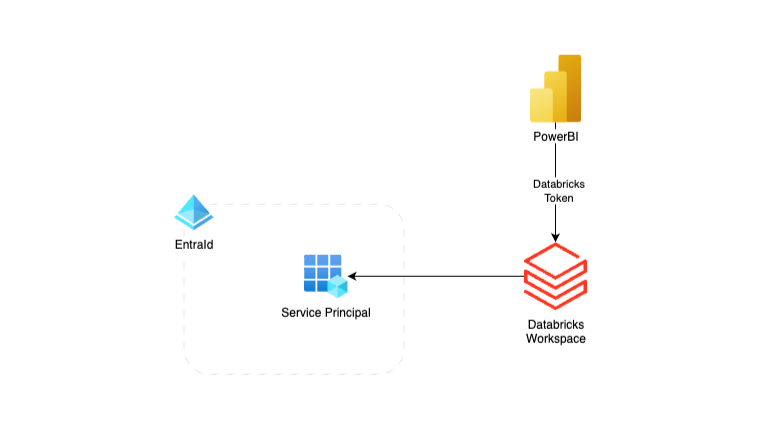
Power BI Databricks Entra ID Service Principal authentication offers a far more secure and scalable alternative to using personal access tokens when connecting Power BI to Databricks. While most tutorials demonstrate the integration with a PAT tied to an individual user, this approach introduces security risks and creates operational bottlenecks. By contrast, using a Microsoft Entra ID Service Principal enables automated, enterprise-grade authentication fully aligned with governance and least-privilege best practices.
In this post, we’ll walk through how to configure Power BI to connect with Databricks using a Service Principal, why this method strengthens security, and how it improves reliability for production-ready Power BI refreshes against Unity Catalog data.
Why Not Personal Access Tokens?
Personal Access Tokens (PATs) are a common way to connect Power BI with Databricks, but they come with several drawbacks:
- User Dependency – Tokens are tied to individual accounts. If that user leaves the organisation or their account is disabled, scheduled refreshes break.
- Expiration Risks – PATs expire after a set period, necessitating manual renewal, which can potentially result in downtime.
- Limited Governance – Hard to audit and track which user created which token.
- Security Concerns – Storing PATs securely is challenging, particularly when multiple individuals or systems require access.
For small-scale testing, PATs may be fine, but for enterprise-grade analytics, they’re far from ideal.
Benefits of Using Entra ID Service Principals
By switching to Entra ID Service Principals, you gain several key advantages:
- Identity-Based Authentication – No personal accounts are involved, reducing security risks.
- Centralised Governance – RBAC and conditional access policies apply naturally.
- Scalable & Reliable – Refreshes are tied to an application identity, not a person.
- Lifecycle Management – Easier to rotate secrets and manage credentials using Azure Key Vault.
This makes Service Principals the recommended approach for production analytics workloads.
Prerequisites
Before diving into the setup, make sure you have:
- A Microsoft Entra ID tenant (previously Azure Active Directory).
- A registered Service Principal (App Registration).
- Databricks workspace with Unity Catalog enabled.
- Access to the Power BI Service for publishing reports.
Assign Permissions in Databricks
To be able to use the EntraID Service Principal to generate the token for the Power BI integration, make sure that the SP is added to Databricks and has sufficient permissions to the Schema or tables in the Unity Catalog:
- In your Databricks workspace, open the Admin Console → Service Principals.
- From User Management, choose Service Principals and add the Service Principal from the Entra ID.
- Grant appropriate permissions in Unity Catalog (e.g., SELECT on tables or views).
Using Terraform and the Databricks provider is highly recommended for permission and Unity Catalog management.
Creating the Databricks Token For the Power BI
Currently, the User Interface does not enable us to generate Databricks access tokens for Service Principals, so the easiest way to create the token is through the API. I’m using Postman as a tool to make the api calls, but please use your own preferred tool.
The Authentication OAuth token from the EntraID
Create a GET request to https://login.microsoftonline.com/{aadTenantDomain}/oauth2/token and replace {aadTenantDomain} with your own Azure EntraId Tenant ID.
Add the following Body content as x-www-form-urlencoded:
grant_type: client_credentials
client_id: the service principal client id
client_secret: The secret created for the service principal
scope: https://databricks.azure.net/.default
resource: 2ff814a6-3304-4ab8-85cb-cd0e6f879c1d (This is a hardcoded ID for Databricks)
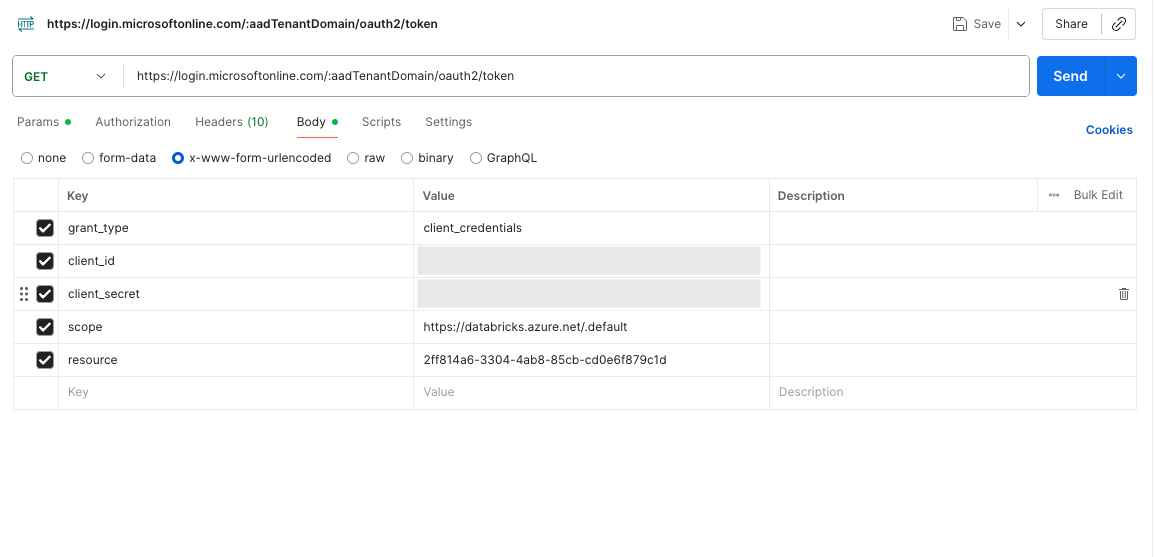
After sending the request, save the access_token value received from the JSON data.
The Databricks token for the Power BI
Now that the authentication token is created, we are ready to make the actual Databricks Token for Power BI to access the Unity Catalogue data.
To create the token, we must make a POST request to the Databricks workspace URL: https://{workspaceURL}.azuredatabricks.net/api/2.0/token/create. (Replace the {workspaceURL} with the workspace’s actual URL.)
In Postman, select the Authorisation tab and choose “Bearer Token” as the Auth Type. Insert the access_token created in the previous step as the value for the Token.
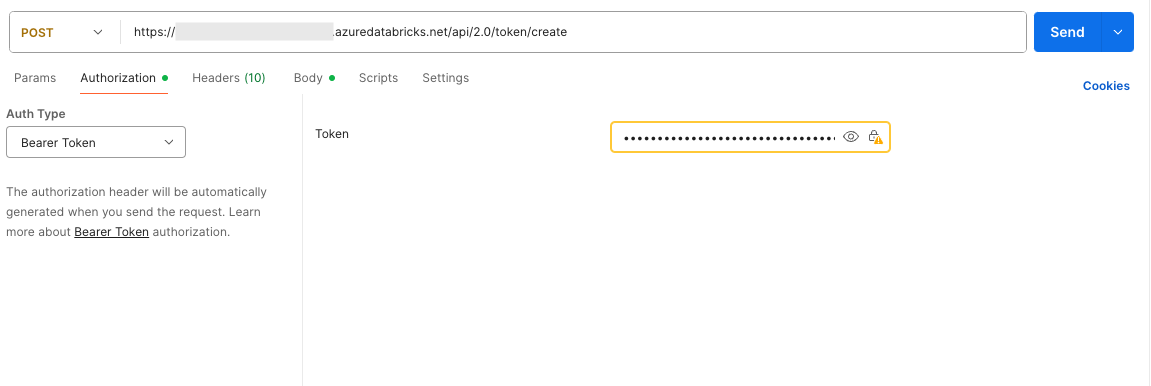
In the body section of the request, add the following section to define your comments for the token and also the lifetime for the token in seconds. In my example, the token is valid for one year:
{
 "comment": "New PAT using OAuth for Power BI Valid 1 year",
 "lifetime_seconds": 31536000
}
After sending the request, you will receive the Databricks token for your Power BI report. The recommendation is to save the token in Azure Key Vault and also set the expiration date for the secret. This is an easy way to track the expiration time for the secret and renew it before it expires. You can always use the Databricks CLI to list tokens and view their information, but this requires more time for investigation.
Power BI Serttings
Assuming you are currently using a personal access token (PAT) from Databricks in your Power BI Semantic model, navigate to the desired workspace in the Power BI portal, select the semantic model, and then choose Settings. In the security settings, ensure that your authentication type is set to Databricks Credentials, and then click the Edit Credentials button.
To update the token, the service requires that the Databricks cluster be in Started mode. If the cluster is not started by clicking ‘Edit the credentials’, it will begin to start the cluster, and you must wait until it is started.
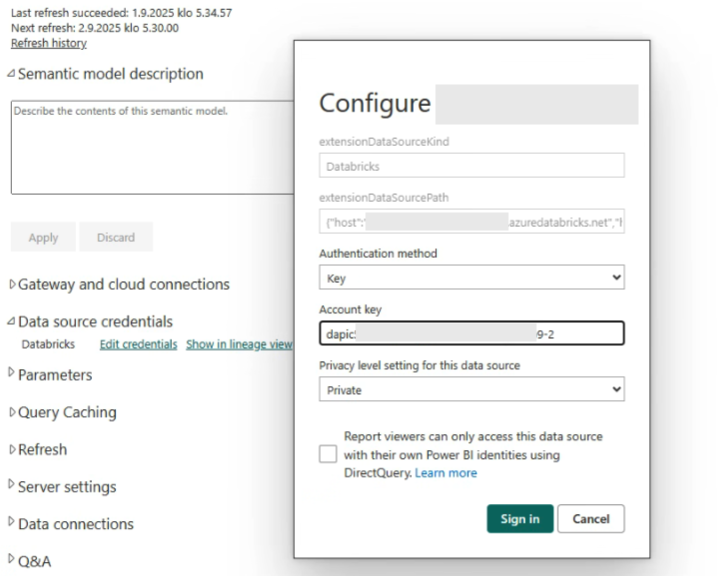
By clicking the Sign In button, the connection to Unity Catalog should be handled by the Service Principal token, not a user token.