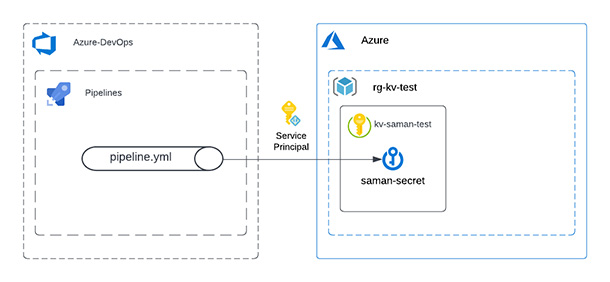
Best practice of secrets in Azure DevOps and life-cycle management can be a complicated topic. In some cases, existing AzDo tasks might not fulfil your needs. This post reviews the options.
The need to use secrets in Azure DevOps pipelines increases the more extensive the enterprise environment, and the more complicated Azure resources are in use. There are three options that I’ll go through in this blog post, and the usage of each case depends on the requirements and the corporate policy in the Azure cloud environment.
Linking an Azure KeyVault to Azure DevOps Variable Group
The first option is to link an Azure Key Vault to a Library in DevOps. During the creation of the Variable Group, you check “Link secrets from an Azure key vault as variables” switch on. The check box will make the authorisation dropdowns visible. The first dropdown will show all the AzDo service connections, or you can create a new one. The second dropdown will show available Key Vaults under the selected service connection. Make sure the Key Vault is created before you create the service connection. The authorisation to the Key Vault requires the Get and List permission from the Service Principal in the AAD created during the service connection creation.
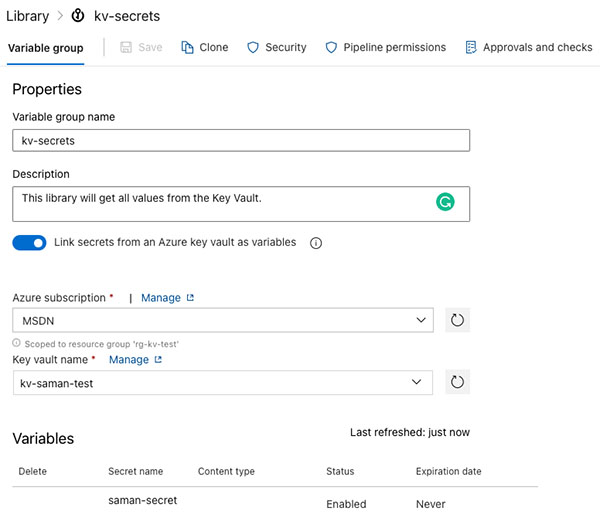
The pros of the feature are the manageability and the life-cycle of the secret in the KV. The cons of this feature are that you can not have any other secrets outside of the KV in this variable group.
Best practice of secrets in Azure DevOps using the Azure Key Vault Task
The second option is to use the Azure Key Vault Task. This option makes it possible to take advantage of a service connection which has access to a KV and fetches all secrets. Here is the code for the YAML task:
# Azure Key Vault
# Download Azure Key Vault secrets
- task: AzureKeyVault@2
  inputs:
    connectedServiceName: MSDN # Azure subscription
    keyVaultName: kv-saman-test # Name of existing key vault
    secretsFilter: '*' # Downloads all secrets for the key vault
    runAsPreJob: true # Runs before the job starts
Two options are critical in this task. The first is to filter secrets using the ‘*’ wildcard or the secret’s name. The second one is to run this task as a pre-job to fetch secrets before the run begins. In addition, using this task will make it possible to point to the Secret using the variable syntax, e.g. $(saman-secret).
By using this approach, you don’t have to manage any variable group, but at the same time, you have no visibility of the available secrets. The visibility of the list of secrets might be a plus if there are corporate policy restrictions.
Custom AzDo Task to Fetch and Expose the Secrets
Not always, the corporate policies or lack of authorisation to Azure resources make it possible to create service connections in the Azure DevOps environment. Fortunately, using the CLI of Azure enables access to Key Vaults. This approach is more extensive and might promote the best practice of secrets in Azure DevOps.
The custom code approach will use the CLI to log in to the Azure subscription and get the secret from the Key Vault. As the environment uses Bash script, the code will also expose the environment variable for further use. Here is the AzDo task code:
variables:
  samanSecret: ''

- bash: |
    # login to Azure using the CLI and service principal
    az login --service-principal -u $CLIENT_ID --tenant $TENANT_ID -p $CLIENT_SECRET

    # Get the secret
    SAMANSERCRET=$(az keyvault secret show --vault-name kv-saman-test --name saman-secret | jq -r '.value')

    #Set the value of the secret to a pipeline variable.
    #This requires the initiation of a pipeline variable before this task
    echo "##vso[task.setvariable variable=samanSecret;issecret=true;isOutput=false;]$SAMANSERCRET"

  displayName: Get saman-secret from kv#
  env:  # mapping of environment variables to add
    CLIENT_ID: 'the-id-of-a-service-principal'
    CLIENT_SECRET: 'the-secret-from-a-service-principal'
    TENANT_ID: 'azure-tenant-id'
Using this custom task, you can get and use the secret in the following Tasks or stages to update the value of a pipeline variable. The Task also makes it possible to fetch previous secret versions and update the secret using the same CLI if required.