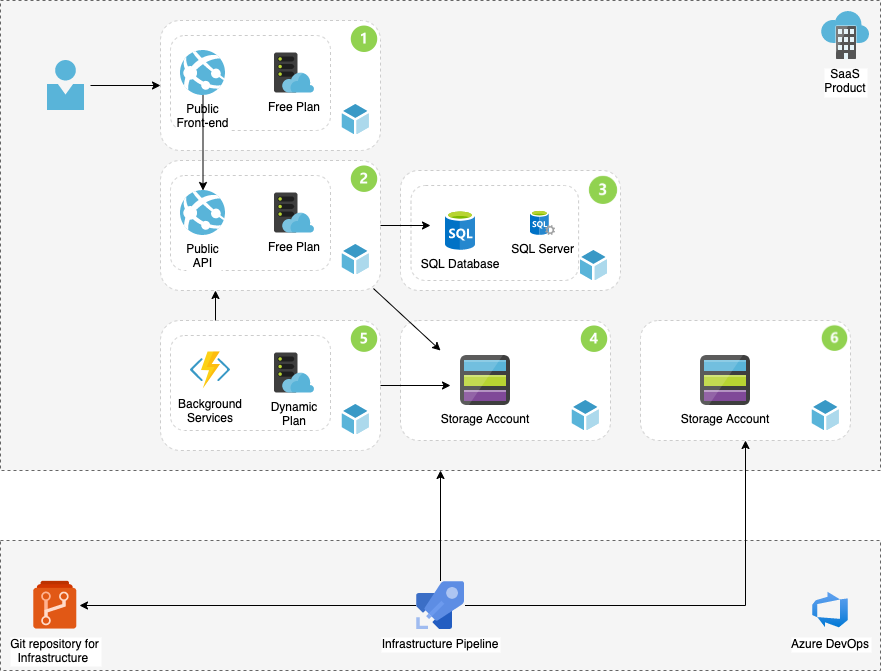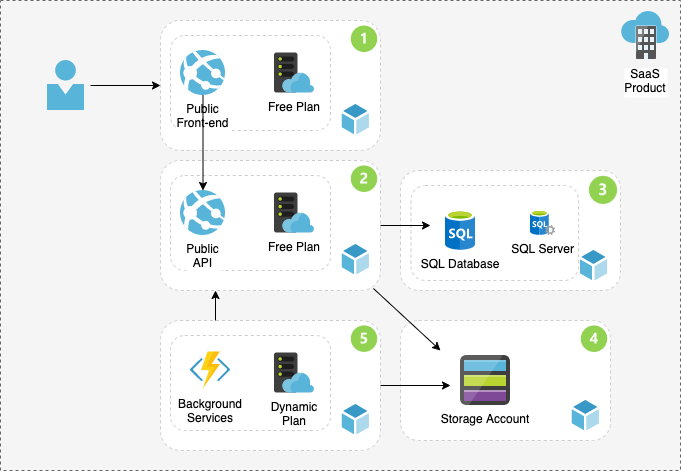

Continuous integration and delivery is part of DevOps processes, and currently part of most software projects. In my previous blog post, I had a review of the problem and why infrastructure as code (IaC) matters. The analysis included the architecture diagram and the Azure components. In this blog post as the continuation, you can read and learn how to Implement Azure Infra using Terraform and Pipelines to be part of your CI/CD in Azure DevOps. This blog post includes a complete technical guide.
Terraform
Terraform is Infrastructure as code to manage and develop cloud components. The tool is not only for specific cloud ecosystem; therefore, it is popular among developer working in different ecosystems. Terraform uses various providers, and in Microsoft cloud case, it uses Azure provisioner (azurerm) to create, modify and delete Azure resources. As explained in the previous blog post, you need the Terraform CLI installed on the environment and Azure account to deploy your resources. To verify the installation, you can write “terraform –version” in the shell terminal to view the installed version of the CLI.
Terraform uses declarative state model. The developer writes the desired state of wanted infrastructure and Terraform will take care of the rest to achieve the results. The workspace consists of one or many .terraform files. The folder on the environment also includes hidden settings and plugins files. The basic Azure provider block with subscription and resource block selection looks like this in main.tf file.
provider "azurerm" {
    version = "~>1.32.0"
    use_msi = true
    subscription_id = "xxxxxxxxxxxxxxxxx"
    tenant_id       = "xxxxxxxxxxxxxxxxx"
}
resource "azurerm_resource_group" "rg" {
    name     = "myExampleGroup"
    location = "westeurope"
}
The provider needs to authenticate to Azure before being able to provision the infrastructure. At the moment there is four authentication models:
- Authenticating to Azure using the Azure CLI
- Authenticating to Azure using Managed Service Identity
- Authenticating to Azure using a Service Principal and a Client Certificate
- Authenticating to Azure using a Service Principal and a Client Secret
Azure DevOps Pipelines Structure
The pipeline definition is defined in the YAML file, which includes one or many stages of the CI/CD process. It’s worth mentioning that currently, Azure pipelines do not support all YAML features. This blog post is not about the YAML and to read more please refer to “Learn YAML in Y minutes“. In the structure of the YAML build file, the stage is the top level of a specific process and includes one or many Jobs with again has one or many jobs. Here is an example of the pipeline structure:
- Stage A
- Job 1
- Step 1.1
- Step 1.2
- …
- Job 2
- Step 2.1
- Step 2.2
- …
- Job 1
- Stage B
- …
Terraform + Azure DevOps Pipelines
Now we have the basic understanding to Implement Azure infra using Terraform and Azure DevOps Pipelines. With the knowledge of Terraform definition files and also the YAML file, it is time to jump to the implementation. In my Github InfraProvisioning code repository root folder, there are three folders and the azure-pipelies.yml file. The YML file is the build definition file which has references to the subfolders which includes the job and step definitions for a stage. The stages in the YAML file refers to the validate, plan and apply steps require in Terraform to provision model.
variables:
  project: shared-resources

- stage: validate
    displayName: Validate
    variables:
      - group: shared
    jobs:
      - template: pipelines/jobs/terraform/validate.yml

  - stage: plan_dev
    condition: and(succeeded(), eq(variables['Build.SourceBranch'], 'refs/heads/master'))
    displayName: Plan for development
    variables:
      - group: shared
      - group: development
    jobs:
      - template: pipelines/jobs/terraform/plan.yml
        parameters:
          workspace: dev

  - stage: apply_dev
    displayName: Apply for development
    variables:
      - group: shared
      - group: development
    jobs:
      - template: pipelines/jobs/terraform/apply.yml
        parameters:
          project: ${{ variables.project }}
          workspace: dev
Each stage in the azure-pipelies.yml file refers to sub .yml files which are:
- jobs/terraform/validate.yml: the step will download the latest version of the terraform, installs it and validates the installation.
- jobs/terraform/plan.yml: this step gets the existing infrastructure definition and compares it to the changes, generates the modified infrastructure plan and publish the plan for the next stage.
- jobs/terraform/apply.yml: will get the plan file, extract it, apply changes and save the output back to the storage account for the next run and comparison.
One more thing, in my previous blog post, I explained how Terraform would use blob storage to save the state files. Include the following job in your build definition if you want to create those initial Azure resources automatically. You can comment the step out once you have the required blob storage. After creating the storage account, create a new blob folder inside the storage account and also create a new secret. You will need these values later when adding all variables to the Azure DevOps environment.
 jobs:
      - job: runbash
        steps:
        - task: Bash@3
          inputs:
            targetType: 'filePath' # Optional. Options: filePath, inline
            filePath: ./tools/create-terraform-backend.sh
            arguments: dev
Settings in Azure DevOps
Most of the environment variables like Azure Resource Manager values are defined in the Group Variables in the Library section under Pipelines on the left navigation. The idea is to have as many environments as necessary in different subscriptions. If you inspect the apply.yml file, you can find the following variables:
- ARM_CLIENT_ID: $(ARM_CLIENT_ID)
- ARM_CLIENT_SECRET: $(ARM_CLIENT_SECRET)
- ARM_TENANT_ID: $(ARM_TENANT_ID)
- ARM_SUBSCRIPTION_ID: $(ARM_SUBSCRIPTION_ID)
To implement Azure infra using Terraform and Pipelines, we need to create an application in Azure Active Directory so Azure DevOps can access our resources in Azure. Follow the following steps to create the application:
- Navigate to Azure Portal and choose your Active Directory from the navigation.
- Under the AAD, choose Application Registration and create a new application. You can name it TerraformAzureDevOps.
- From the main page of the application, copy the Application ID and the Tenant Id. We will need these values later.
- Choose Certificates & secrets from the navigation and create a new secret. Copy this value before changing the view because you will see it once.
Back in the Azure DevOps, and under Library section we have to create the following Variable Groups with the following variables:
Name: Development
- ARM_CLIENT_ID: [The application ID we created in the AAD]
- ARM_CLIENT_SECRET: [The secret from the AAD]
- ARM_SUBSCRIPTION_ID: [The Subscription ID from Azure]
- TERRAFORM_BACKEND_KEY: [The secret from the storage account created using the create-terraform-backend.sh script ]
- TERRAFORM_BACKEND_NAME: [The name of the blob folder created using the create-terraform-backend.sh script]
- WORKSPACE: [Your choice of name, e.g. Dev]
Name: Shared
- ARM_TENANT_ID: [The AAD Id]
- TERRAFORM_VERSION: 0.12.18
Under each variable group the “Allow access to all pipelines” should be on!
Implement Azure infra Modifications
As you get the build definition up and running in your Azure DevOps environment all you have to do in the future is to edit the terraform/main.tf file to manage your Azure infrastructure.
Implement Azure infra using Terraform and Pipelines will help you to save a lot of time and money, not to mention it will also improve the quality, maintainability and the security of the environment.
You can find the complete solution and source files from my GitHub repository. Lastly, I want to give credits to my colleague Antti Kivimäki from Futurice, who has helped my team with difficult Terraform tasks.