Tag

databricks

Browsing

Since 2022, our data engineering team has been running Databricks and dbt Core to power our Data Vault environment. Everything ran smoothly—until we encountered the “remote client cannot create a SparkContext” error. This issue forced us to switch to creating a SparkSession instead and prompted a deep dive into its cause and solution.

That streak of reliability came to an abrupt stop last week when our DBT Python models running on Databricks started failing with the following error message:

[CONTEXT_UNAVAILABLE_FOR_REMOTE_CLIENT] The remote client cannot create a SparkContext. Create SparkSession instead.

This unexpected error disrupted our DBT runs, which had been stable for years. At first, it seemed related to how Spark contexts were being initialized—something that had not changed in our codebase. We then conducted a deep dive into recent Databricks platform updates. These updates affected DBT’s execution model when connecting remotely.

Why the Remote Client Cannot Create a SparkContext and How to Fix It

Initial Debugging Attempts

We spent hours debugging our code, testing different approaches, and combing through Databricks and DBT documentation for clues—but nothing seemed to resolve the issue. The error persisted across multiple models and environments, leaving us puzzled. Eventually, we decided to experiment with our infrastructure itself. By switching the cluster type, we finally managed to get our dbt jobs running again. This confirmed that the problem wasn’t within our code or dbt configuration, but rather linked to the Databricks cluster environment.

Using the dbt_cli Cluster

During our investigation, we discovered Databricks’ dedicated dbt_cli cluster, which runs DBT jobs efficiently. This cluster simplifies integration by providing a pre-configured environment where DBT Core and its dependencies come pre-installed. Setup becomes faster, and the cluster reduces compatibility issues. However, it primarily supports job execution rather than interactive development or broader data processing tasks. While convenient and lightweight, it offers less flexibility and scalability than an all-purpose cluster. For example, it cannot handle mixed workloads or support ad-hoc queries as efficiently. In our case, switching to the dbt_cli cluster resolved the SparkContext problem. We did need to adjust our workflow to match the job-oriented design of this cluster type.

Exploring Serverless Clusters

In addition to the dbt_cli cluster, Databricks also offers serverless clusters, which have recently become a strong option for development and debugging. We found that when the cluster configuration includes”spark.databricks.serverless.environmentVersion”: “3”, it fully supports dbt runs without the SparkContext issue. Serverless clusters start up quickly, scale efficiently, and provide a clean environment that’s ideal for testing and interactive development. However, there’s a trade-off—these clusters have limited direct access to Unity Catalog in notebooks.

Why All-Purpose Clusters Remain the Best Choice

In the end, we found that the all-purpose clusters remain the best and fastest option for running our dbt workloads in Databricks. Their flexibility, performance, and compatibility with our Data Vault framework make them ideal for both development and production. While the recent issue forced us to explore alternatives like the dbt_cli and serverless clusters, these workarounds kept our pipelines running and gave us valuable insights into Databricks’ evolving infrastructure. Hopefully, future updates will restore full support for running dbt Python models directly on all-purpose clusters—bringing back the seamless experience we’ve enjoyed since 2022

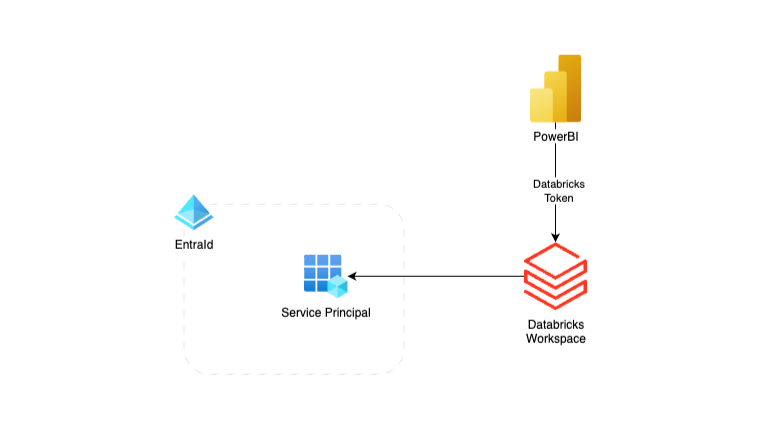
Power BI Databricks Entra ID Service Principal authentication offers a far more secure and scalable alternative to using personal access tokens when connecting Power BI to Databricks. While most tutorials demonstrate the integration with a PAT tied to an individual user, this approach introduces security risks and creates operational bottlenecks. By contrast, using a Microsoft Entra ID Service Principal enables automated, enterprise-grade authentication fully aligned with governance and least-privilege best practices.

In this post, we’ll walk through how to configure Power BI to connect with Databricks using a Service Principal, why this method strengthens security, and how it improves reliability for production-ready Power BI refreshes against Unity Catalog data.

Why Not Personal Access Tokens?

Personal Access Tokens (PATs) are a common way to connect Power BI with Databricks, but they come with several drawbacks:

  • User Dependency – Tokens are tied to individual accounts. If that user leaves the organisation or their account is disabled, scheduled refreshes break.
  • Expiration Risks – PATs expire after a set period, necessitating manual renewal, which can potentially result in downtime.
  • Limited Governance – Hard to audit and track which user created which token.
  • Security Concerns – Storing PATs securely is challenging, particularly when multiple individuals or systems require access.

For small-scale testing, PATs may be fine, but for enterprise-grade analytics, they’re far from ideal.

Benefits of Using Entra ID Service Principals

By switching to Entra ID Service Principals, you gain several key advantages:

  • Identity-Based Authentication – No personal accounts are involved, reducing security risks.
  • Centralised Governance – RBAC and conditional access policies apply naturally.
  • Scalable & Reliable – Refreshes are tied to an application identity, not a person.
  • Lifecycle Management – Easier to rotate secrets and manage credentials using Azure Key Vault.

This makes Service Principals the recommended approach for production analytics workloads.

Prerequisites

Before diving into the setup, make sure you have:

  1. A Microsoft Entra ID tenant (previously Azure Active Directory).
  2. A registered Service Principal (App Registration).
  3. Databricks workspace with Unity Catalog enabled.
  4. Access to the Power BI Service for publishing reports.

Assign Permissions in Databricks

To be able to use the EntraID Service Principal to generate the token for the Power BI integration, make sure that the SP is added to Databricks and has sufficient permissions to the Schema or tables in the Unity Catalog:

  1. In your Databricks workspace, open the Admin ConsoleService Principals.
  2. From User Management, choose Service Principals and add the Service Principal from the Entra ID.
  3. Grant appropriate permissions in Unity Catalog (e.g., SELECT on tables or views).

Using Terraform and the Databricks provider is highly recommended for permission and Unity Catalog management.

Creating the Databricks Token For the Power BI

Currently, the User Interface does not enable us to generate Databricks access tokens for Service Principals, so the easiest way to create the token is through the API. I’m using Postman as a tool to make the api calls, but please use your own preferred tool.

The Authentication OAuth token from the EntraID

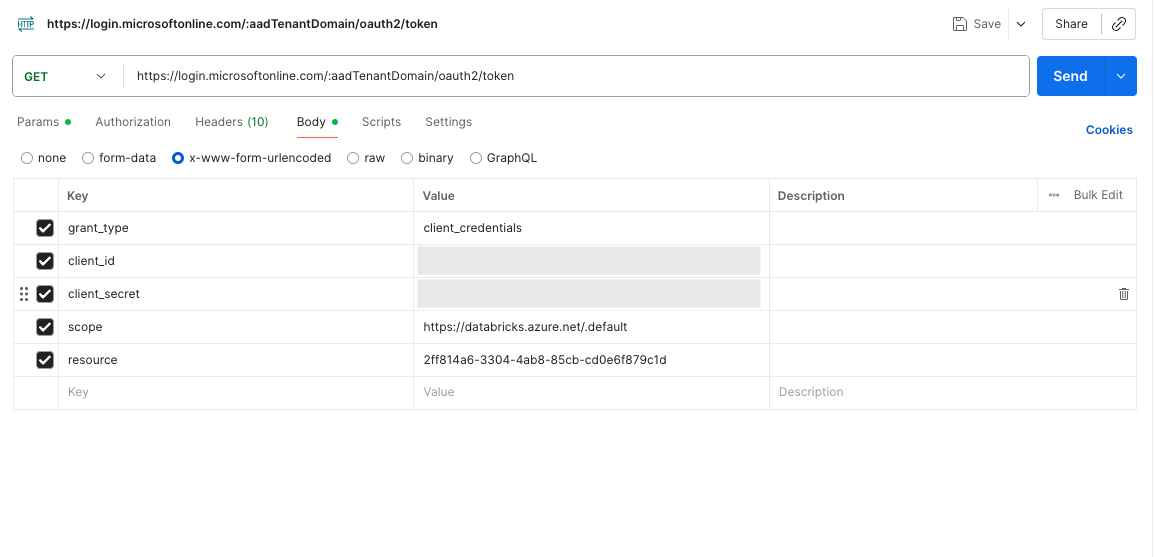
Create a GET request to https://login.microsoftonline.com/{aadTenantDomain}/oauth2/token and replace {aadTenantDomain} with your own Azure EntraId Tenant ID.

Add the following Body content as x-www-form-urlencoded:

grant_type: client_credentials

client_id: the service principal client id

client_secret: The secret created for the service principal

scope: https://databricks.azure.net/.default

resource: 2ff814a6-3304-4ab8-85cb-cd0e6f879c1d (This is a hardcoded ID for Databricks)

Article content
Postman with the request body to get the authentication bearer token for Databricks.

After sending the request, save the access_token value received from the JSON data.

The Databricks token for the Power BI

Now that the authentication token is created, we are ready to make the actual Databricks Token for Power BI to access the Unity Catalogue data.

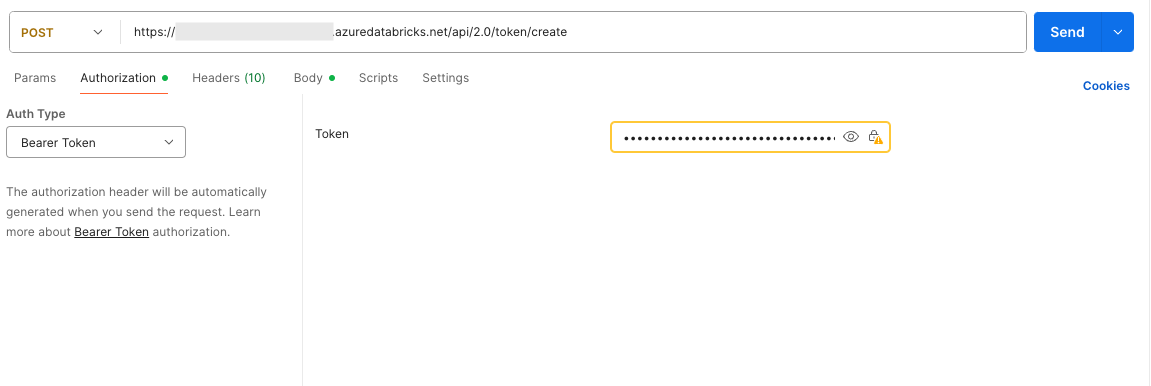
To create the token, we must make a POST request to the Databricks workspace URL: https://{workspaceURL}.azuredatabricks.net/api/2.0/token/create. (Replace the {workspaceURL} with the workspace’s actual URL.)

In Postman, select the Authorisation tab and choose “Bearer Token” as the Auth Type. Insert the access_token created in the previous step as the value for the Token.

Article content
The authetication for getting the Databricks Service Principal PAT.

In the body section of the request, add the following section to define your comments for the token and also the lifetime for the token in seconds. In my example, the token is valid for one year:

{
 "comment": "New PAT using OAuth for Power BI Valid 1 year",
 "lifetime_seconds": 31536000
}

After sending the request, you will receive the Databricks token for your Power BI report. The recommendation is to save the token in Azure Key Vault and also set the expiration date for the secret. This is an easy way to track the expiration time for the secret and renew it before it expires. You can always use the Databricks CLI to list tokens and view their information, but this requires more time for investigation.

Power BI Serttings

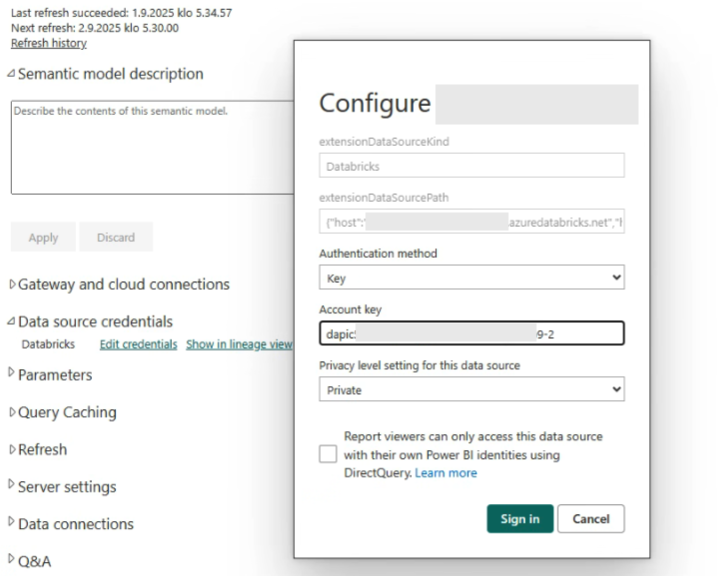
Assuming you are currently using a personal access token (PAT) from Databricks in your Power BI Semantic model, navigate to the desired workspace in the Power BI portal, select the semantic model, and then choose Settings. In the security settings, ensure that your authentication type is set to Databricks Credentials, and then click the Edit Credentials button.

To update the token, the service requires that the Databricks cluster be in Started mode. If the cluster is not started by clicking ‘Edit the credentials’, it will begin to start the cluster, and you must wait until it is started.

Article content
Key Settings of Power BI

By clicking the Sign In button, the connection to Unity Catalog should be handled by the Service Principal token, not a user token.

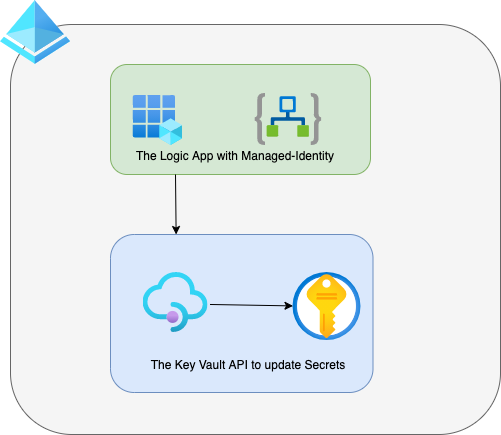
Azure Key Vault Secret updates using Logic App are challenging as there are no connectors, but using the API is a secure and managed way to do it.

Here is some background information on the use case. During my recent data and integration project, the team used Azure Logic apps to batch update and processed data to Salesforce. The Salesforce API requires a pre-defined schema for batch updating its objects. The ETL pipe using Azure Databricks makes the data ready in Azure Service Bus. Then, a Logic App trigger is used to perform the batch runs by subscribing to a topic.

The Problem of updates using the Logic App

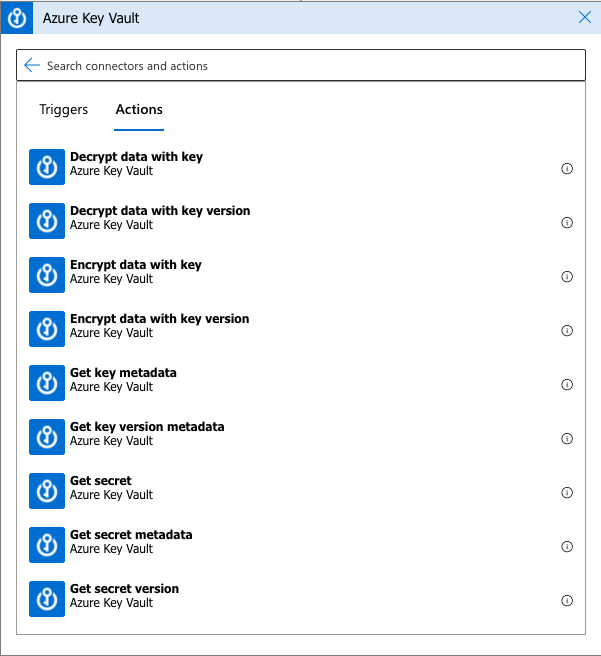
The Salesforce API requires an OAuth Bearer token to authenticate its services. The secure way to store the token in Azure would be in the Azure Key Vault. The logic app provides actions to use the Azure Key Vault. The currently supported actions are Decrypt, Encrypt, Get or List secrets. Therefore, we have no problem connecting to the Key Vault and getting the required token for the API calls with supported actions.

Logic Apps Actions for the Key Vault

The problem escalates when the token gets expired, and we have to renew the token.

The solution

Our architecture has a separate logic app dedicated to updating the Salesforce token. However, for some reason, there are no ready-made Actions for updating secrets in the Key Vault. So we had to use the API of the Key Vault to solve the problem.

The Technical Solution for Key Vault Secret Update

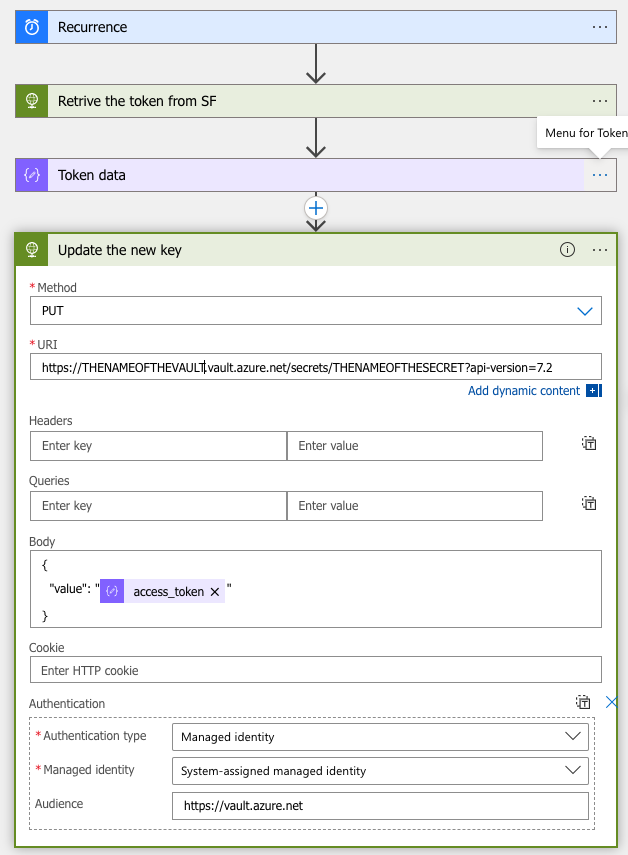
The token refresh workflow has four steps. First, the trigger is a recurrence and launches, for example, every hour, an HTTP API call that gets the token from the SalesForce API, a JSON parse action fetches the token. Finally, the HTTP API updates the token to the Key Vault.

Configuring the managed Identity

To authenticate against the Key Vault API, the most efficient way is to take advantage of the managed identity of the logic apps and give enough permissions to the identity to update secrets in the Key Vault.

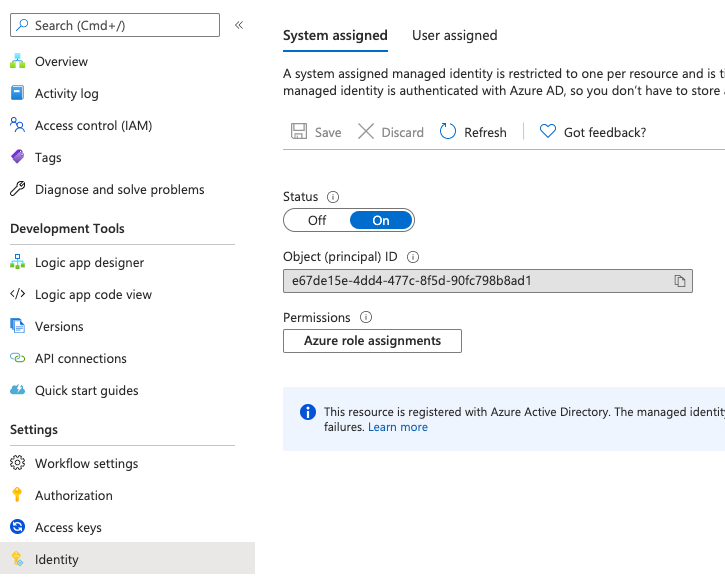
System Assigned managed identity in the Logic App

First, we have to create the system-assigned manager identity for the logic app from the Identity section. The next step is to give Get, List, and Set from the Access policies to the identity in the Key Vault using the object ID.

Azure Key Vault Secret updates using Logic App

Providing the secret, we want to update in the body section of the call. The Authentication type for the Action is Managed identity by using the System-Assigned identity. Some Azure services require the audience field to be also provided. In this case, the Audience value is https://vault.azure.net, as shown in the picture below.

Azure key vault secret update
The token refresh flow using API

This way, we don’t have to do an extra call to get a token for the Key Vault API, and the logic apps will do the work for us. Again, please refer to the Key Vault API documentation for more information.

Databricks on Azure is essential in data, AI and IoT solutions, but the env. automation can be challenging. Azure DevOps is a great tool for automation. Using Pipelines and product CLI integrations can minimise or even remove these challenges. My team is currently working on a cutting edge IoT platform where data flows from edge devices to Azure. We are dealing with data which is sensitive, and under GDPR so no one should have direct access to the data platform in the production environments.

In the project, data is generated by sensors and sent to the cloud by the edge devices. Ingestion, processing and analysis of data are too complicated for the traditional relational databases; for this reason, there are other tools to refine the data. We use DataBricks in our Lambda Architecture to batch process the data at rest and predictive analytics and machine learning. This blog post is about the DataBricks cluster and environment management, and I’ll not go deeper to the architecture or IoT solution.

The Automation Problems

As any reliable project, we have three environments which are development, user acceptance testing (UAT) and production. In my two previous posts, Azure Infrastructure using Terraform and Pipelines and Implement Azure Infrastructure using Terraform and Pipelines, I had an in-depth review and explanation of why and how Terraform solves environment generation and management problems. Let’s have a study the code Terraform provides for Databricks.

resource "azurerm_resource_group" "example" {
  name     = "example-resources"
  location = "West US"
}

resource "azurerm_databricks_workspace" "example" {
  name                = "databricks-test"
  resource_group_name = azurerm_resource_group.example.name
  location            = azurerm_resource_group.example.location
  sku                 = "standard"

  tags = {
    Environment = "Production"
  }
}

Wait a minute, but that is only the empty environment!
What about the Clusters, Pools, Libraries, Secrets and WorkSpaces?

The Solution, DataBricks Automation with Azure DevOps

Fortunately, DataBricks has a CLI which we can be imported for DataBricks environment automation using Azure DevOps Pipelines. The Pipelines enable us to run PowerShell or Bash scripts as a job step. By using the CLI interfaces in our Bash Script, we can create, manage and maintain our Data bricks environments. This approach will remove the need to do any manual work on the Production DataBricks Work Space. Let’s review the bash script.

#!/bin/bash
set -e

CLUSTER_JSON_FILE="./cluster.json"
INSTANCE_POOL_JSON_FILE="./instance-pool.json"
WAIT_TIME=10

wait_for_cluster_running_state () {
  while true; do
    CLUSTER_STATUS=$(databricks clusters get --cluster-id $CLUSTER_ID | jq -r '.state')
    if [[ $CLUSTER_STATUS == "RUNNING" ]]; then
        echo "Operation ready."
        break
    fi
    echo "Cluster is still in pending state, waiting $WAIT_TIME sec.."
    sleep $WAIT_TIME
  done
}

wait_for_pool_running_state () {
  while true; do
    POOL_STATUS=$(databricks instance-pools get --instance-pool-id $POOL_INSTANCE_ID | jq -r '.state')
    if [[ $POOL_STATUS == "ACTIVE" ]]; then
        echo "Operation ready."
        break
    fi
    echo "Pool instance is still in not ready yet, waiting $WAIT_TIME sec.."
    sleep $WAIT_TIME
  done
}

arr=( $(databricks clusters list --output JSON | jq -r '.clusters[].cluster_name'))
echo "Current clusters:"
echo "${arr[@]}"

CLUSTER_NAME=$(cat $CLUSTER_JSON_FILE | jq -r  '.cluster_name')

# Cluster already exists
if [[ " ${arr[@]} " =~ $CLUSTER_NAME ]]; then
    echo 'The cluster is already created, skipping the cluster operation.'
    exit 0
fi

# Cluster does not exist
if [[-z "$arr" || ! " ${arr[@]} " =~ $CLUSTER_NAME ]]; then
  printf "Setting up the databricks environment. Cluster name: %s\n" $CLUSTER_NAME

  #Fetching pool-instances
  POOL_INSTANCES=( $(databricks instance-pools list --output JSON | jq -r 'select(.instance_pools != null) | .instance_pools[].instance_pool_name'))
  POOL_NAME=$(cat $INSTANCE_POOL_JSON_FILE | jq -r  '.instance_pool_name')
  if [[ -z "$POOL_INSTANCES" || ! " ${POOL_INSTANCES[@]} " =~ $POOL_NAME ]]; then
    # Creating the pool-instance
    printf 'Creating new Instance-Pool: %s\n' $POOL_NAME
    POOL_INSTANCE_ID=$(databricks instance-pools create --json-file $INSTANCE_POOL_JSON_FILE | jq -r '.instance_pool_id')
    wait_for_pool_running_state
  fi

  if [[ " ${POOL_INSTANCES[@]} " =~ $POOL_NAME ]]; then
    POOL_INSTANCE_ID=$(databricks instance-pools list --output JSON | jq -r --arg I "$POOL_NAME" '.instance_pools[] | select(.instance_pool_name == $I) | .instance_pool_id')
    printf 'The Pool already exists with id: %s\n' $POOL_INSTANCE_ID
  fi

  # Transforming the cluster JSON
  NEW_CLUSTER_CONFIG=$(cat $CLUSTER_JSON_FILE | jq -r --arg var $POOL_INSTANCE_ID '.instance_pool_id = $var')

  # Creating databricks cluster with the cluster.json values
  printf 'Creating cluster: %s\n' $CLUSTER_NAME

  CLUSTER_ID=$(databricks clusters create --json "$NEW_CLUSTER_CONFIG" | jq -r '.cluster_id')
  wait_for_cluster_running_state

  # Adding cosmosdb Library to the cluster
  printf 'Adding the cosmosdb library to the cluster %s\n' $CLUSTER_ID
  databricks libraries install \
    --cluster-id $CLUSTER_ID \
    --maven-coordinates "com.microsoft.azure:azure-cosmosdb-spark_2.4.0_2.11:1.3.5"
  wait_for_cluster_running_state
  echo 'CosmosDB-Spark -library added successfully.'
  
  echo "Databricks setup created successfully."
fi

First, we will create a Pool for the cluster by waiting for the completion status and the Id. Then we will create a cluster by using the created Pool and wait for the completion. As our cluster gets ready then we will be able to use the cluster id to add Libraries and Workspaces using the following script. there are two support JSON files which include the environment properties.

 cluster.json 
{
    "cluster_name": "main-cluster",
    "spark_version": "6.4.x-scala2.11",
    "autoscale": {
        "min_workers": 1,
        "max_workers": 4
    },
    "instance_pool_id": "FROM_EXTERNAL_SOURCE"
}

pool.json
{
    "instance_pool_name": "main-pool",
    "node_type_id": "Standard_D3_v2",
    "min_idle_instances": 2,
    "idle_instances": 2,
    "idle_instance_auto_termination": 60
}

In our Azure DevOps Pipelines definition first we have to install Python runtime and then DataBricks CLI. By having required environment runtimes then we can run the bash script. Here is the code snippet for the Pipelines step:

- bash: |
          python -m pip install --upgrade pip setuptools wheel
          python -m pip install databricks-cli

          databricks --version
        displayName: Install Databricks CLI

      - bash: |
          cat >~/.databrickscfg <<EOL
          [DEFAULT]
          host = https://westeurope.azuredatabricks.net
          token = $(DATABRICKS_TOKEN)
          EOL
        displayName: Configure Databricks CLI

      - task: ShellScript@2
        inputs:
          workingDirectory: $(Build.SourcesDirectory)/assets/databricks
          scriptPath: $(Build.SourcesDirectory)/assets/databricks/setup.sh
          args: ${{ parameters.project }}-${{ parameters.workspace }}
        displayName: Setup Databricks

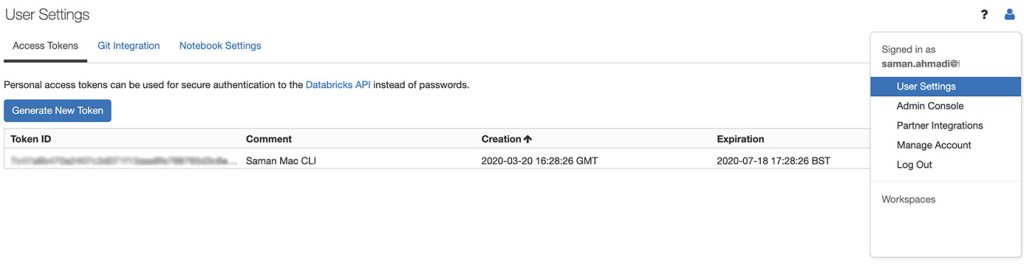
To be able to run the script against the Databricks environment you need a token. The token can be generated under the workspace and user settings.

DataBricks Automation with Azure DevOps Pipelines. DataBricks Token.

The environment variables and settings are in JSON files, and the complete solution for DataBricks Automation with Azure DevOps Pipelines and support tool files are available from my GitHub repository.