Author

samana

Browsing

In modern data architectures, the Lakehouse paradigm is gaining strong traction — combining the scale and flexibility of data lakes with the ACID reliability and governance of data warehouses. At the center of this evolution is the comparison between DeltaLake Apache Iceberg v3, two leading table formats shaping the next generation of open data management. Delta Lake (pioneered by Databricks) and Apache Iceberg, which I reviewed in my previous post, continue to evolve rapidly. With the recent release of Iceberg v3 on Databricks, it’s a perfect moment to analyse how these formats compare — and, importantly, how they converge. This analysis builds on insights shared in Databricks’ recent blog post on Iceberg v3 and extends them with additional technical context, architectural interpretation, and practical considerations for modern data lakehouse design.

Why This Comparison Matters

Historically, choosing between Delta Lake and Iceberg meant a trade-off:

  • Delta Lake offered deep integration with Databricks, excellent performance, and mature transactional semantics.
  • Iceberg provided broad interoperability and standardisation across engines (Spark, Flink, Trino, Presto, etc.).

But as noted in the Databricks blog, Iceberg v3 introduces features that significantly narrow the gap.

Key Technical Enhancements in Iceberg v3 (on Databricks)

According to Databricks, Iceberg v3 brings several flagship features to managed tables, enabled via Unity Catalog: deletion vectors, row-level lineage, and a Variant data type. Let’s unpack these and explain their significance in analytical systems.

Deletion Vectors

  • Traditional row-level updates or deletes in Parquet-based tables often require rewriting entire Parquet files — expensive at scale.
  • Iceberg v3 supports deletion vectors, which store deletion information separately (in vector files) and merge during reads.
  • On Databricks, this can speed up updates by up to 10× compared to standard MERGE operations, because the underlying Parquet data files don’t need to be rewritten.
  • This design reflects a strong alignment with Delta Lake’s transactional behaviour, but via an open, standard way.

Row-Level Lineage (Row IDs)

  • Iceberg v3 introduces row lineage, where each row has a unique identifier. This is mandatory for v3 tables.
  • With row-lineage plus deletion vectors, you can achieve row-level concurrency control: writers can detect conflicts at the row granularity, rather than relying on coarse-grained locking or manual coordination.
  • This is a powerful feature for multi-writer environments and complex ETL pipelines, and Databricks claims to be the only engine currently offering this capability at the open-table-format level.

Variant Data Type

  • Modern data ingestion often involves semi-structured formats (JSON, XML, nested schemas). Iceberg v3 introduces a VARIANT data type to store such semi-structured data natively.
  • On Databricks, ingestion functions support JSON, CSV, XML, and the VARIANT columns can be shredded (flattened) into substructures for efficient columnar querying.
  • Crucially, this works across both Delta and Iceberg tables, enabling teams on different query engines to share a single physical dataset without duplication.
  • This brings schema flexibility and makes the lakehouse more unified and less rigid.

Unified Metadata / Table Behaviour

  • One of the most significant implications of Iceberg v3 is that it aligns core table semantics between Delta Lake and Iceberg: deletion semantics, file layout, and row tracking.
  • This reduces the need to pick one format over the other — with Iceberg v3, you can use a single copy of data and query it via either format, with consistent behaviour.
  • For organisations, this means avoiding costly data rewrites (petabytes of data) simply because they chose one format early on.

Governance via Unity Catalog

  • Iceberg v3, when used on Databricks, is fully integrated with Unity Catalog, enabling centralised governance, audit, and access control across formats (Delta & Iceberg).
  • Using Unity Catalog’s Iceberg REST Catalog APIs, external Iceberg engines can interact with managed tables, supporting cross-engine reads/writes.

Delta Lake Evolution and Interoperability

It’s also important to place Delta Lake’s own evolution into context:

  • With Delta Lake 3.0, Databricks introduced the Universal Format (UniForm), which enables Delta tables to be exposed (read) as if they were Iceberg or Hudi.
  • This strategy—the “universal format”—helps eliminate format fragmentation and reduces the need for full data conversion between formats: Delta can act as a canonical storage layer, but clients can read via open formats.
  • Combining Delta’s performance optimisations (with Databricks’ native runtime) and the open interoperability of Iceberg (via UniForm or v3), the lakehouse becomes truly cross-engine and future-ready.

When to Use Which Format — A Technical Lens

Given the above, here’s a refined, technical decision framework for choosing Delta Lake vs Iceberg v3 in a Databricks-centric architecture:

  • All workloads run on Databricks (SQL analytics, ML, ETL): Use Delta Lake (native) for maximum performance and simplicity. Consider writing in Delta, exposing via UniForm, or even migrating to Iceberg v3 only when cross-engine needs arise.
  • Multi-engine (e.g., Spark + Trino + Flink): Use Iceberg v3 with Unity Catalog: you benefit from row-level concurrency, deletion vectors, and variant types while maintaining a single data copy.
  • Semi-structured ingestion (JSON / XML / logs): Use Iceberg v3 with Variant type: better schema flexibility, performance optimisations via shredding, and unified access across formats.
  • Governance-critical environments: Use Unity Catalog-managed Iceberg v3 tables: centralised governance, lineage, and access control across clients/engines.
  • Large-scale metadata and multi-table operations: Leverage Iceberg’s metadata tree model and upcoming community features (like adaptive metadata tree) to scale efficiently. Databricks contributions are directly shaping this.

Implications for the Future of Open Lakehouses

  • Convergence Rather Than Divergence: With Iceberg v3 and UniForm, Databricks is pushing toward a future where format choice does not force data duplication or compromise on features.
  • Open Standards & Community Leadership: Databricks is contributing key capabilities (deletion vectors, lineage, variant) back to the Iceberg community.
  • Metadata Innovations: The next frontier includes community-driven improvements like the adaptive metadata tree (introduced at Iceberg Summit), which promises to reduce metadata overhead and accelerate operations at scale.
  • Single Data Copy, Multi-Engine Access: This architecture reduces storage cost, simplifies architecture, and enables diverse workloads without fragmentation.

Conclusion

The release of Apache Iceberg v3 on Databricks is a watershed moment in the evolution of the data lakehouse paradigm. By bridging the semantic gap between Iceberg and Delta Lake — through deletion vectors, row lineage, and variant types — Databricks enables unified, performant, and governed data architectures.

For data architects and engineers, the decision between Delta Lake and Iceberg is less about locking in on a single format and more about choosing the right engine and governance layer, while maintaining future flexibility.

If you’re building or modernizing a Lakehouse, consider adopting Iceberg v3 (on Unity Catalog) where cross-engine interoperability, semi-structured data, and fine-grained concurrency matter. For purely Databricks-native workloads, continue leveraging Delta Lake, but design with UniForm or Iceberg v3 in mind — giving you a flexible path forward with minimal data duplication.
As organisations scale their modern data platforms, the debate around open table formats increasingly centres on Databricks DeltaLake Apache Iceberg. These two leading technologies both aim to deliver reliability, performance, and strong governance to data lakes—but they take distinct approaches, offer different strengths, and align with different use cases.

Whether you’re building a Lakehouse from scratch or modernising an existing data lake, understanding these differences is essential.

What Are Open Table Formats?

Open table formats enable data lakes to behave like databases—supporting ACID transactions, schema evolution, versioning, and efficient queries over massive datasets—while still using open storage (usually cloud object stores).

The three major table formats today are:

  • Delta Lake (originated by Databricks)
  • Apache Iceberg (originally from Netflix)
  • Apache Hudi

This blog focuses on Delta Lake vs. Iceberg, the two most commonly compared options.

1. Architecture and Design Philosophy

Delta Lake (Databricks)

Delta Lake was built for high-performance analytics inside the Databricks Lakehouse Platform. It features:

  • Transaction logs stored in JSON
  • A tight integration with Databricks runtimes
  • Excellent performance with Databricks Photon engine

Delta can be used outside Databricks, but the best features (Unity Catalog, Delta Live Tables, optimized writes) are available only on the Databricks platform.

Design philosophy: Performance-first, deeply integrated into the Databricks ecosystem.

Apache Iceberg

Iceberg is a vendor-neutral, open, community-driven project designed for multi-engine interoperability (Spark, Flink, Trino, Presto, Snowflake, Dremio, BigQuery, etc.).

It uses:

  • A highly scalable metadata tree structure (MANIFEST and METADATA files)
  • A table snapshot model designed for massive datasets
  • Hidden partitioning and substantial schema evolution

Design philosophy: Open, flexible, engine-agnostic, built for multi-cloud and multi-engine architectures.

2. Feature Comparison Databricks DeltaLake vs Apache Iceberg

ACID Transactions

Both Delta Lake and Iceberg support ACID transactions.

  • Delta Lake: JSON-based transaction log
  • Iceberg: Metadata & manifest trees

Verdict: Both are reliable, but Iceberg tends to scale better for very large metadata sets.

Schema Evolution

Both support schema evolution, but with some nuance:

  • Delta Lake: Supports add/drop/rename fields, but renames may be less reliable across all engines.
  • Iceberg: Offers the most robust schema evolution in the market, including field ID tracking and hidden partition evolution.

Verdict: Iceberg wins for long-term governance and cross-engine compatibility.

Partitioning

  • Delta Lake: Partition pruning works well but relies on stored partition columns.
  • Iceberg: Introduced hidden partitioning, keeping partition logic internal to metadata.

Verdict: Iceberg is more flexible and easier to operate as data evolves.

Performance

  • Delta Lake: Exceptional performance when paired with Databricks Photon.
  • Iceberg: Performance depends more on the query engine; strong with Trino, Spark, Snowflake, Dremio.

Verdict: If you’re all-in on Databricks, Delta wins. If you’re multi-engine, Iceberg is more flexible.

3. Interoperability

Delta Lake

  • Best performance inside Databricks
  • Limited writable interoperability across other engines
  • Delta Universal Format (UniForm) aims to bridge Delta → Iceberg/Hudi readers, but adoption is still growing.

Apache Iceberg

  • Designed from day one for interoperability
  • Supported by Spark, Flink, Trino, Presto, Snowflake, Athena, Dremio, BigQuery (read support)

Verdict: If you want vendor neutrality and multi-engine support, Iceberg is the clear winner.

4. Governance and Catalog Integration

Delta Lake

  • Unity Catalog provides centralized governance—but only on Databricks.
  • Outside Databricks, Delta has fewer cataloging/governance features.

Iceberg

  • Works with many catalogs:

Verdict: Iceberg offers broader ecosystem support.

5. Use Cases Best Suited for Each

Choose Databricks Delta Lake if:

  • You are heavily invested in Databricks
  • You want the best performance with Photon
  • You prefer a fully managed Lakehouse ecosystem
  • You rely on Databricks features like MLflow, DLT, Unity Catalog

Choose Apache Iceberg if:

  • You need multi-engine interoperability
  • You want the most flexible open table format
  • You want to avoid vendor lock-in
  • You run workloads on multiple clouds or different query engines
  • Governance and schema evolution are priority

Final Thoughts

The choice between Delta Lake and Apache Iceberg ultimately comes down to one key question:

Are you all-in on Databricks, or do you want an open, engine-agnostic data lake architecture?

  • If your data strategy revolves around Databricks, Delta Lake offers unmatched integration and performance.
  • If you’re building a flexible, future-proof data lake with multiple compute engines, Apache Iceberg is the best choice today.

In my next Blog post, I will do a technical deep dive for Delta Lake vs Apache Iceberg v3!

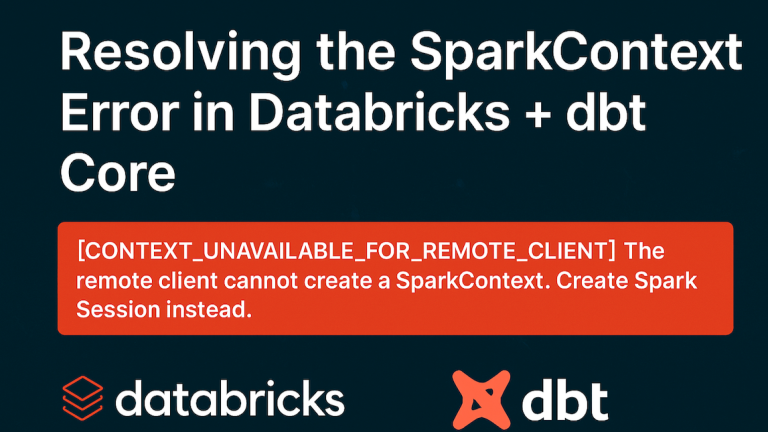
Since 2022, our data engineering team has been running Databricks and dbt Core to power our Data Vault environment. Everything ran smoothly—until we encountered the “remote client cannot create a SparkContext” error. This issue forced us to switch to creating a SparkSession instead and prompted a deep dive into its cause and solution.

That streak of reliability came to an abrupt stop last week when our DBT Python models running on Databricks started failing with the following error message:

[CONTEXT_UNAVAILABLE_FOR_REMOTE_CLIENT] The remote client cannot create a SparkContext. Create SparkSession instead.

This unexpected error disrupted our DBT runs, which had been stable for years. At first, it seemed related to how Spark contexts were being initialized—something that had not changed in our codebase. We then conducted a deep dive into recent Databricks platform updates. These updates affected DBT’s execution model when connecting remotely.

Why the Remote Client Cannot Create a SparkContext and How to Fix It

Initial Debugging Attempts

We spent hours debugging our code, testing different approaches, and combing through Databricks and DBT documentation for clues—but nothing seemed to resolve the issue. The error persisted across multiple models and environments, leaving us puzzled. Eventually, we decided to experiment with our infrastructure itself. By switching the cluster type, we finally managed to get our dbt jobs running again. This confirmed that the problem wasn’t within our code or dbt configuration, but rather linked to the Databricks cluster environment.

Using the dbt_cli Cluster

During our investigation, we discovered Databricks’ dedicated dbt_cli cluster, which runs DBT jobs efficiently. This cluster simplifies integration by providing a pre-configured environment where DBT Core and its dependencies come pre-installed. Setup becomes faster, and the cluster reduces compatibility issues. However, it primarily supports job execution rather than interactive development or broader data processing tasks. While convenient and lightweight, it offers less flexibility and scalability than an all-purpose cluster. For example, it cannot handle mixed workloads or support ad-hoc queries as efficiently. In our case, switching to the dbt_cli cluster resolved the SparkContext problem. We did need to adjust our workflow to match the job-oriented design of this cluster type.

Exploring Serverless Clusters

In addition to the dbt_cli cluster, Databricks also offers serverless clusters, which have recently become a strong option for development and debugging. We found that when the cluster configuration includes”spark.databricks.serverless.environmentVersion”: “3”, it fully supports dbt runs without the SparkContext issue. Serverless clusters start up quickly, scale efficiently, and provide a clean environment that’s ideal for testing and interactive development. However, there’s a trade-off—these clusters have limited direct access to Unity Catalog in notebooks.

Why All-Purpose Clusters Remain the Best Choice

In the end, we found that the all-purpose clusters remain the best and fastest option for running our dbt workloads in Databricks. Their flexibility, performance, and compatibility with our Data Vault framework make them ideal for both development and production. While the recent issue forced us to explore alternatives like the dbt_cli and serverless clusters, these workarounds kept our pipelines running and gave us valuable insights into Databricks’ evolving infrastructure. Hopefully, future updates will restore full support for running dbt Python models directly on all-purpose clusters—bringing back the seamless experience we’ve enjoyed since 2022

When we decided to use Azure SQL Database, we trusted that, as a fully managed PaaS service, it would handle all routine maintenance and performance optimisation behind the scenes. After all, that’s one of the main selling points of a managed service — less time worrying about databases and more time building features. However, we recently encountered unexpected slowness and performance degradation, which made it clear that, even with Azure handling most management tasks, some performance issues still require our own investigation and fine-tuning.

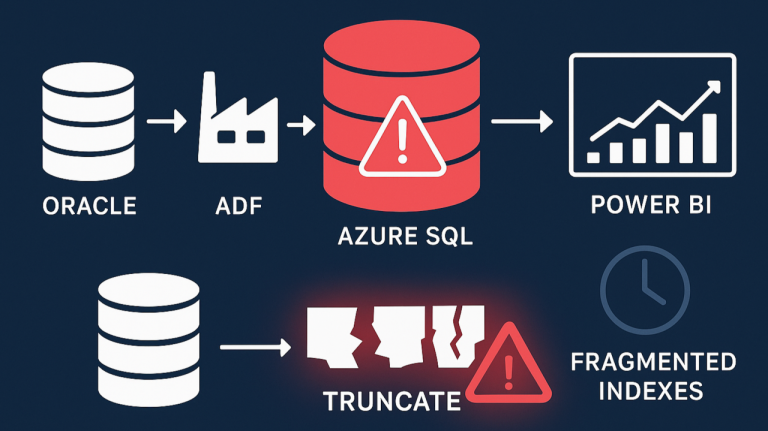
Our setup is built around Azure SQL Database as the central repository for data warehousing and data integration. The goal is to consolidate information from multiple environments into a single, accessible platform that supports analytics and reporting through Azure Data Factory (ADF) and Microsoft Fabric.

The Cause

One of the key data sources in this architecture is an Oracle database. To bring this data into Azure, we perform direct copies from Oracle to Azure SQL. The process is straightforward. For each data load, we truncate the target table in Azure SQL. We then copy the latest data from Oracle into it. This keeps the Azure SQL tables up to date with the source system. It removes the need for incremental logic or change tracking. This simple approach has worked well for us in most cases.

It’s worth noting that Microsoft does not recommend this truncate-and-reload approach for production workloads. Instead, their best practices emphasise using incremental data loads — updating only the rows that have changed since the last load. Incremental updates reduce resource consumption, improve performance, and minimise the impact on the target database, especially as data volumes grow.

How Azure SQL Index Fragmentation Impacts Performance

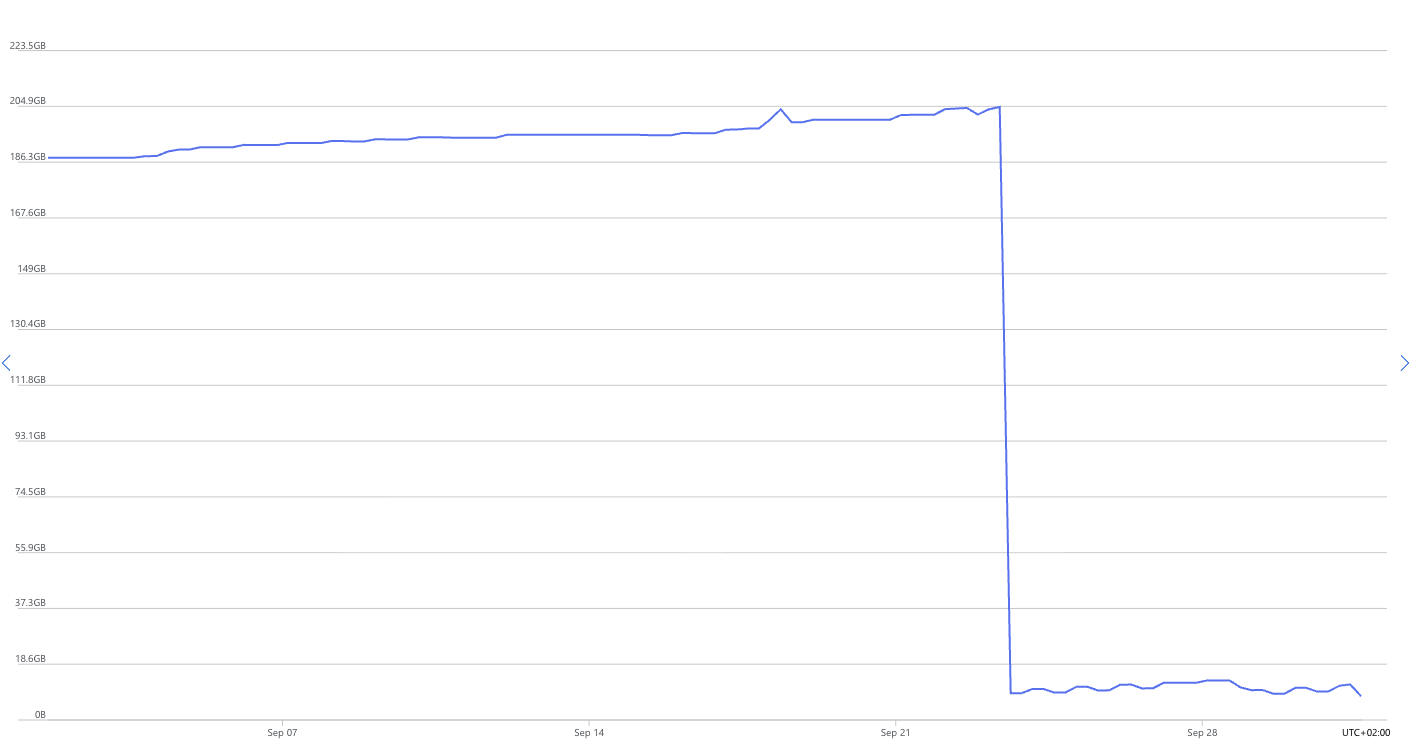
After some months of running this process, we noticed that our Power BI reports started slowing down dramatically. Even simple SQL queries that used to return results instantly were now taking more than five minutes to complete. That was our signal to start digging deeper. From the Azure Portal, we observed that the database storage size kept increasing after each data load, even though the source data volume remained almost the same, with only minor daily changes. Before long, we were running low on storage, which clearly indicated that something unusual was happening beneath the surface. Please take a look at the following picture for the data size trend, which shows this increase and the drop after the fix.

Article content
Database disk space allocation before and after the fragmentation fix.

Detecting Azure SQL Index Fragmentation with Built-In Tools

As we looked deeper and analysed the queries, we discovered that the indexes on the affected tables and views had grown dramatically. This was unusual because the data volume itself hadn’t changed much. When we inspected the database metadata — including RowCounts, TotalPages, UsedPages, DataPages, TotalSpaceMB, UsedSpaceMB, and DataSpaceMB — the numbers didn’t add up. The indexes were consuming far more space than expected, suggesting that internal fragmentation or storage inefficiency was causing the issue. To better understand what was happening, we ran the following query to check the row counts, page usage, and space allocation details for the affected tables:

SELECT
SCHEMA_NAME (t.schema_id) as Shcema,
    t.NAME AS TableName,
    i.name AS IndexName,
    SUM(p.rows) AS RowCounts,
    SUM(a.total_pages) AS TotalPages, 
    SUM(a.used_pages) AS UsedPages, 
    SUM(a.data_pages) AS DataPages,
    (SUM(a.total_pages) * 8) / 1024 AS TotalSpaceMB, 
    (SUM(a.used_pages) * 8) / 1024 AS UsedSpaceMB, 
    (SUM(a.data_pages) * 8) / 1024 AS DataSpaceMB,
    ps.avg_fragmentation_in_percent AS FragmentationPercent
    FROM 
    sys.tables t
INNER JOIN  
    sys.indexes i ON t.OBJECT_ID = i.object_id
INNER JOIN 
    sys.partitions p ON i.object_id = p.OBJECT_ID AND i.index_id = p.index_id
INNER JOIN 
    sys.allocation_units a ON p.partition_id = a.container_id
INNER JOIN 
    sys.dm_db_index_physical_stats(DB_ID(), NULL, NULL, NULL, 'LIMITED') ps 
    ON i.object_id = ps.object_id AND i.index_id = ps.index_id
WHERE 
    t.NAME NOT LIKE 'dt%' AND 
    i.OBJECT_ID > 255   
    --i.index_id <= 1
GROUP BY 
    t.NAME, i.object_id, i.index_id, i.name, ps.avg_fragmentation_in_percent,SCHEMA_NAME (t.schema_id)
ORDER BY 
    TotalSpaceMB DESC,
    OBJECT_NAME(i.object_id) 

The solution

After identifying that the issue was due to index fragmentation and insufficient space being released after each TRUNCATE operation, we decided to rebuild and recalculate the indexes on the affected tables. This process effectively removed fragmented index pages and reclaimed the unused storage space that had accumulated over time. Once the indexes were refreshed, the database size dropped significantly, query performance returned to normal, and our Power BI reports started running smoothly again. In short, cleaning up the indexes resolved the slowness and storage growth issues completely.

To prevent this issue from recurring, we implemented a stored procedure that performs index cleanup at the end of each ADF pipeline run. This ensures that any fragmentation caused by the TRUNCATE-and-load process is addressed automatically, keeping the database healthy and performant. Here is the code for the stored procedure:

CREATE PROCEDURE [dbo].[Index_Maintenance]
AS
BEGIN
    -- Creates the log table if necessary
    IF NOT EXISTS (
        SELECT * FROM sys.objects 
        WHERE object_id = OBJECT_ID(N'[dbo].[IndexMaintenanceLog]') AND type in (N'U')
    )
    BEGIN
        CREATE TABLE [dbo].[IndexMaintenanceLog] (
            LogID INT IDENTITY(1,1) PRIMARY KEY,
            SchemaName NVARCHAR(128),
            TableName NVARCHAR(128),
            IndexName NVARCHAR(128),
            ActionTaken NVARCHAR(20),
            Fragmentation FLOAT,
            ActionDate DATETIME DEFAULT GETDATE()
        )
    END

    DECLARE @TableName NVARCHAR(128)
    DECLARE @IndexName NVARCHAR(128)
    DECLARE @SchemaName NVARCHAR(128)
    DECLARE @SQL NVARCHAR(MAX)
    DECLARE @Frag FLOAT
    DECLARE @Action NVARCHAR(20)

    DECLARE cur CURSOR FOR
    SELECT 
        s.name AS SchemaName,
        t.name AS TableName,
        i.name AS IndexName
    FROM 
        sys.indexes i
        INNER JOIN sys.tables t ON i.object_id = t.object_id
        INNER JOIN sys.schemas s ON t.schema_id = s.schema_id
    WHERE 
        i.type_desc IN ('CLUSTERED', 'NONCLUSTERED')
        AND i.name IS NOT NULL

    OPEN cur
    FETCH NEXT FROM cur INTO @SchemaName, @TableName, @IndexName

    WHILE @@FETCH_STATUS = 0
    BEGIN
        SELECT @Frag = avg_fragmentation_in_percent
        FROM sys.dm_db_index_physical_stats (DB_ID(), OBJECT_ID(@SchemaName + '.' + @TableName), NULL, NULL, 'LIMITED')
        WHERE index_id = (SELECT index_id FROM sys.indexes WHERE name = @IndexName AND object_id = OBJECT_ID(@SchemaName + '.' + @TableName))

        SET @SQL = NULL
        SET @Action = NULL

        IF @Frag >= 5 AND @Frag < 30
        BEGIN
            SET @SQL = 'ALTER INDEX [' + @IndexName + '] ON [' + @SchemaName + '].[' + @TableName + '] REORGANIZE;'
            SET @Action = 'REORGANIZE'
        END
        ELSE IF @Frag >= 30
        BEGIN
            SET @SQL = 'ALTER INDEX [' + @IndexName + '] ON [' + @SchemaName + '].[' + @TableName + '] REBUILD WITH (ONLINE = ON);'
            SET @Action = 'REBUILD'
        END
        IF @SQL IS NOT NULL
        BEGIN
            EXEC sp_executesql @SQL

            INSERT INTO [dbo].[IndexMaintenanceLog] (SchemaName, TableName, IndexName, ActionTaken, Fragmentation)
            VALUES (@SchemaName, @TableName, @IndexName, @Action, @Frag)
        END
        FETCH NEXT FROM cur INTO @SchemaName, @TableName, @IndexName
    END

    CLOSE cur
    DEALLOCATE cur

    RETURN 1
END
GO 

The script loops through each index by using a cursor. It calculates fragmentation with sys.dm_db_index_physical_stats. It then decides whether to reorganise the index at 5–30% fragmentation. For 30% or higher, it rebuilds the index online. After the action, it logs the index name, table, schema, fragmentation level, and action taken. This keeps indexes optimised and reduces fragmentation. It also maintains a history of maintenance actions for auditing or troubleshooting.

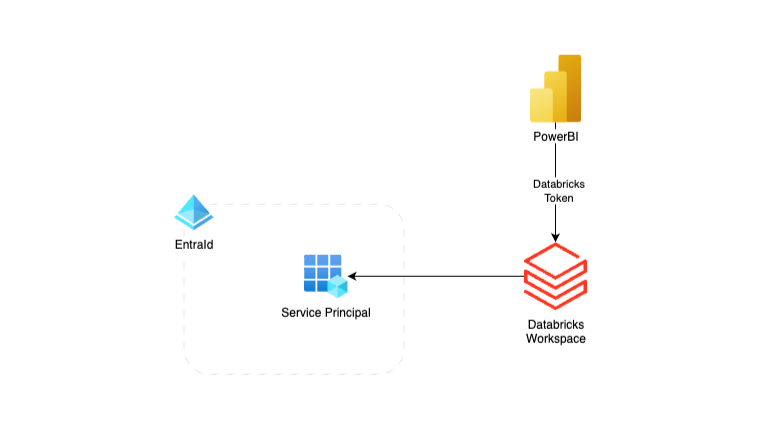
Power BI Databricks Entra ID Service Principal authentication offers a far more secure and scalable alternative to using personal access tokens when connecting Power BI to Databricks. While most tutorials demonstrate the integration with a PAT tied to an individual user, this approach introduces security risks and creates operational bottlenecks. By contrast, using a Microsoft Entra ID Service Principal enables automated, enterprise-grade authentication fully aligned with governance and least-privilege best practices.

In this post, we’ll walk through how to configure Power BI to connect with Databricks using a Service Principal, why this method strengthens security, and how it improves reliability for production-ready Power BI refreshes against Unity Catalog data.

Why Not Personal Access Tokens?

Personal Access Tokens (PATs) are a common way to connect Power BI with Databricks, but they come with several drawbacks:

  • User Dependency – Tokens are tied to individual accounts. If that user leaves the organisation or their account is disabled, scheduled refreshes break.
  • Expiration Risks – PATs expire after a set period, necessitating manual renewal, which can potentially result in downtime.
  • Limited Governance – Hard to audit and track which user created which token.
  • Security Concerns – Storing PATs securely is challenging, particularly when multiple individuals or systems require access.

For small-scale testing, PATs may be fine, but for enterprise-grade analytics, they’re far from ideal.

Benefits of Using Entra ID Service Principals

By switching to Entra ID Service Principals, you gain several key advantages:

  • Identity-Based Authentication – No personal accounts are involved, reducing security risks.
  • Centralised Governance – RBAC and conditional access policies apply naturally.
  • Scalable & Reliable – Refreshes are tied to an application identity, not a person.
  • Lifecycle Management – Easier to rotate secrets and manage credentials using Azure Key Vault.

This makes Service Principals the recommended approach for production analytics workloads.

Prerequisites

Before diving into the setup, make sure you have:

  1. A Microsoft Entra ID tenant (previously Azure Active Directory).
  2. A registered Service Principal (App Registration).
  3. Databricks workspace with Unity Catalog enabled.
  4. Access to the Power BI Service for publishing reports.

Assign Permissions in Databricks

To be able to use the EntraID Service Principal to generate the token for the Power BI integration, make sure that the SP is added to Databricks and has sufficient permissions to the Schema or tables in the Unity Catalog:

  1. In your Databricks workspace, open the Admin ConsoleService Principals.
  2. From User Management, choose Service Principals and add the Service Principal from the Entra ID.
  3. Grant appropriate permissions in Unity Catalog (e.g., SELECT on tables or views).

Using Terraform and the Databricks provider is highly recommended for permission and Unity Catalog management.

Creating the Databricks Token For the Power BI

Currently, the User Interface does not enable us to generate Databricks access tokens for Service Principals, so the easiest way to create the token is through the API. I’m using Postman as a tool to make the api calls, but please use your own preferred tool.

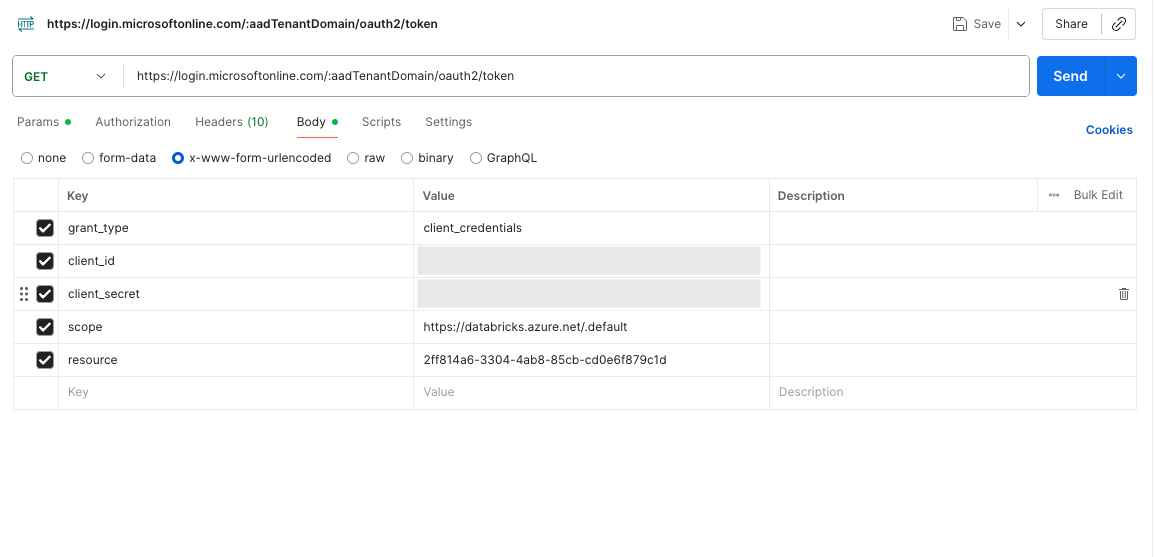
The Authentication OAuth token from the EntraID

Create a GET request to https://login.microsoftonline.com/{aadTenantDomain}/oauth2/token and replace {aadTenantDomain} with your own Azure EntraId Tenant ID.

Add the following Body content as x-www-form-urlencoded:

grant_type: client_credentials

client_id: the service principal client id

client_secret: The secret created for the service principal

scope: https://databricks.azure.net/.default

resource: 2ff814a6-3304-4ab8-85cb-cd0e6f879c1d (This is a hardcoded ID for Databricks)

Article content
Postman with the request body to get the authentication bearer token for Databricks.

After sending the request, save the access_token value received from the JSON data.

The Databricks token for the Power BI

Now that the authentication token is created, we are ready to make the actual Databricks Token for Power BI to access the Unity Catalogue data.

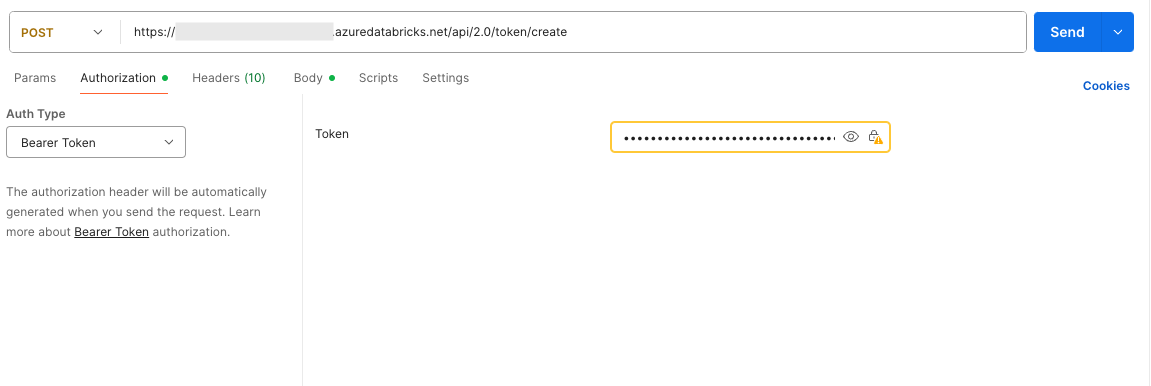
To create the token, we must make a POST request to the Databricks workspace URL: https://{workspaceURL}.azuredatabricks.net/api/2.0/token/create. (Replace the {workspaceURL} with the workspace’s actual URL.)

In Postman, select the Authorisation tab and choose “Bearer Token” as the Auth Type. Insert the access_token created in the previous step as the value for the Token.

Article content
The authetication for getting the Databricks Service Principal PAT.

In the body section of the request, add the following section to define your comments for the token and also the lifetime for the token in seconds. In my example, the token is valid for one year:

{
 "comment": "New PAT using OAuth for Power BI Valid 1 year",
 "lifetime_seconds": 31536000
}

After sending the request, you will receive the Databricks token for your Power BI report. The recommendation is to save the token in Azure Key Vault and also set the expiration date for the secret. This is an easy way to track the expiration time for the secret and renew it before it expires. You can always use the Databricks CLI to list tokens and view their information, but this requires more time for investigation.

Power BI Serttings

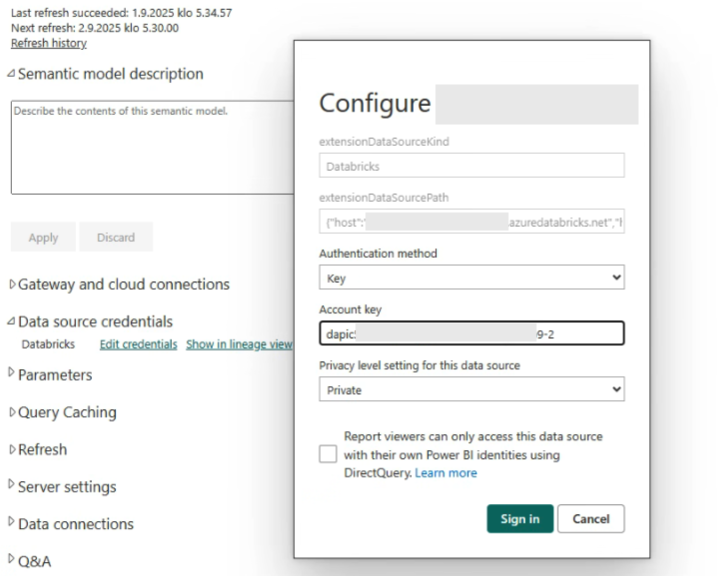
Assuming you are currently using a personal access token (PAT) from Databricks in your Power BI Semantic model, navigate to the desired workspace in the Power BI portal, select the semantic model, and then choose Settings. In the security settings, ensure that your authentication type is set to Databricks Credentials, and then click the Edit Credentials button.

To update the token, the service requires that the Databricks cluster be in Started mode. If the cluster is not started by clicking ‘Edit the credentials’, it will begin to start the cluster, and you must wait until it is started.

Article content
Key Settings of Power BI

By clicking the Sign In button, the connection to Unity Catalog should be handled by the Service Principal token, not a user token.

AKS Federated identity credentials can access Azure resources like Key Vault or Storage account in the Kubernetes Pods without providing account credentials or connection strings in the code.

Azure Kubernetes Service, or AKS, is a managed Kubernetes platform service which provides an environment for cloud-native apps. The service interoperates with Azure security, identity, cost management and migration services. The platform usage is famous in micro-service applications, but also a perfect environment for long-running data processes and orchestrations.

Regardless of functionality, Azure cloud-native applications require access to other services to perform the CRUD operations on files in a Data Lake or Storage Account or fetch a secret from a Key Vault. The code usually takes a connection string or credentials to create a client for the service and uses those credentials to perform the task. Here are some examples.

A Python code to create ClientSecret credentials using a Service Principal client id and secret.

from azure.identity import ClientSecretCredential
token_credential = ClientSecretCredential(
self.active_directory_tenant_id,
self.active_directory_application_id,
self.active_directory_application_secret
)

# Instantiate a BlobServiceClient using a token credential
from azure.storage.blob import BlobServiceClient
blob_service_client = BlobServiceClient(account_url=self.oauth_url, credential=token_credential)

A C# code to create a blob service client using the connection string:

BlobServiceClient blobServiceClient = new BlobServiceClient("DefaultEndpointsProtocol=https;AccountName=<your-account-key>;AccountKey=<your-account-key>;EndpointSuffix=core.windows.net");

The Default Credentials

The DefaultAzureCredential() method under Azure.Identity namespace would be the best option to get the current credentials within the current environment context where the code is running. To avoid passing sensitive information to the code or overhead of managing the credentials in the secrets service of Kubernetes. The problem with default credentials would be logging into Azure using the CLI to enable the security context for the method.

AKS Federated Identity

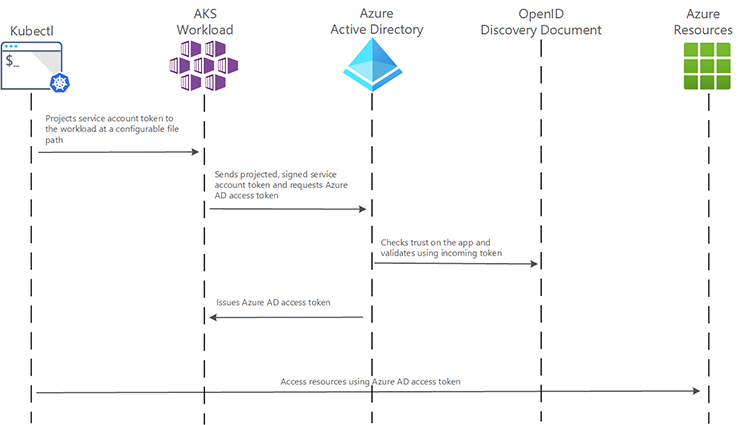
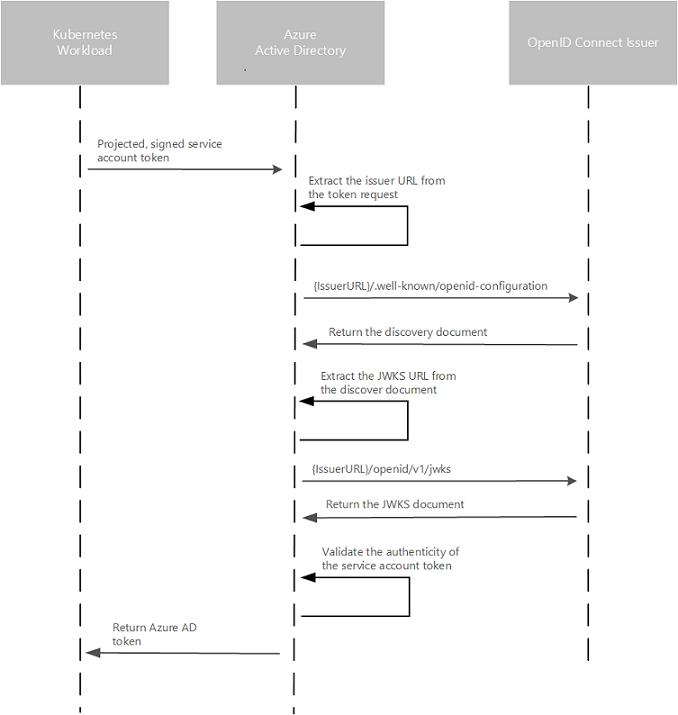
AKS has introduced federated identity to solve the problem of fetching the context for the method.  This pod-managed identity allows the hosted workload or application access to resources through Azure Active Directory (Azure AD). For example, a workload stores files in Azure Storage, and when it needs to access those files, the pod authenticates itself against the resource as an Azure-managed identity. This feature works in the cloud and on-premises clusters but is still in preview mode.

Source: https://learn.microsoft.com/en-us/azure/aks/workload-identity-overview

Requirements and Configurations

The feature requires the cluster to have the OIDC Issuer enabled, allowing the API server to discover public signing keys. You can use the CLI to update, create or update a cluster using the –enable-oidc-issuer and –enable-managed-identity flags. In Terraform, you can set the oidc_issuer_enabled and workload_identity_enabled to true.

az aks update -g myResourceGroup -n myAKSCluster –enable-oidc-issuer –enable-managed-identity

To get the OIDC which you will need in the next steps use the following CLI command:

az aks show -n myAKScluster -g myResourceGroup --query "oidcIssuerProfile.issuerUrl" -otsv

User Assigned Managed Identity

The next step is to create a User assigned managed identities to enable Azure resources to authenticate to services that support Azure AD authentication without storing credentials in code. The identity can be created using the portal searching for “User Assigned Managed Identity”, Terraform or the CLI:

az identity create --name myIdentity --resource-group myResourceGroup

resource "azurerm_user_assigned_identity" "saman_identity_poc" {
resource_group_name = azurerm_resource_group.rg.name
location = azurerm_resource_group.rg.location
name = "saman-cluster-poc"
}

Kubernetes Service Account

As the Azure User assigned identity is created, we have to create a Kubernetes Service Account, which provides an identity for processes that run in a Pod and map to a ServiceAccount object. We have to provide the client if of the created managed identity in the annotations section. The Client id is presented on the Overview page of the User Assigned Managed Identity. Create a service account using the kubectl CLI or Terraform as follows:

kubectl apply -f - <<EOF
apiVersion: v1
kind: Secret
metadata:
  name: saman-identity-poc
  annotations: azure.workload.identity/client-id: THE CLIENT ID OF THE IDENTITY
type: kubernetes.io/service-account-token
EOF

Terraform:

resource "kubernetes_service_account" "aks_poc" {
metadata {
name = "saman-identity-poc"
namespace = "saman"
annotations = {
"azure.workload.identity/client-id" = data.azurerm_user_assigned_identity.wlid_managed_identity.client_id
}
labels = {
"azure.workload.identity/use" = "true"
}
}
}

Federated Identity Credentials

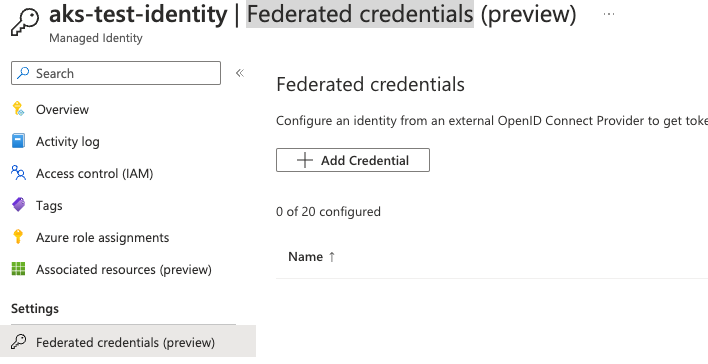
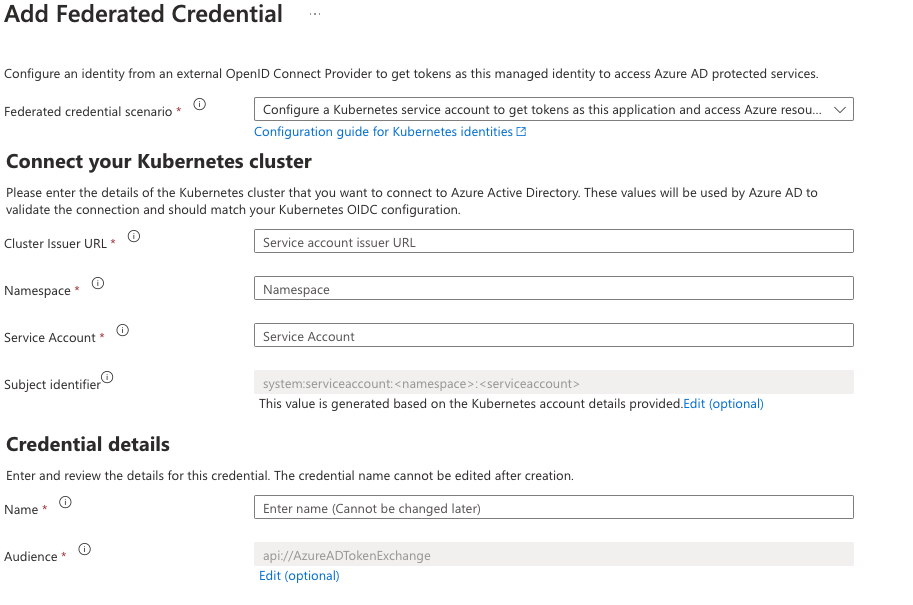
The federation can be created by having the two parts identities from Azure and Kubernetes. For the illustration, I have a screenshot from the Azure portal to see the information required in the User assigned identity. You can navigate this view by selecting the identity created earlier in the portal and choosing “Federated credentials” from the navigation. Click on the “Add Credentials” button on the federated credentials page. Choose “Kubernetes accessing Azure Resources” in the next screen to see the following files.

Federated Identity: add credentials.
AKS Federated Identity
AKS Federated Identity Fields
  • The cluster Issuer URL is the one we got from the OIDC part.
  • The namespace is the one used to create the Kubernetes service account.
  • Service Account was created in the previous step using the kubectl. So in my example “saman-identity-poc
  • The name field is your unique name to give to this federation.

When the fields are filled, press the update button and create the federation. You can achieve the same result using the following Terraform definition:

resource "azurerm_federated_identity_credential" "saman_identity_poc" {
name = "saman-identity-poc-federated-credential"
resource_group_name = azurerm_resource_group.rg.name
parent_id = azurerm_user_assigned_identity.saman_identity_poc.id
issuer = azurerm_kubernetes_cluster.aks_cluster.oidc_issuer_url
subject = "system:serviceaccount:saman:saman-identity-poc"
audience = ["api://AzureADTokenExchange"]
}

AKS Federated Identity Conclution

  • Avoid passing credentials and connection strings to your code
  • Create a User Assigned Managed Identity
  • Create a Kubernetes service account
  • Create a federation between the identity and the service account
  • When the federation is created, assign roles to the user management identity in the Azure resource and let the Azure identity providers take care of the rest

Best practice of secrets in Azure DevOps and life-cycle management can be a complicated topic. In some cases, existing AzDo tasks might not fulfil your needs. This post reviews the options.

The need to use secrets in Azure DevOps pipelines increases the more extensive the enterprise environment, and the more complicated Azure resources are in use. There are three options that I’ll go through in this blog post, and the usage of each case depends on the requirements and the corporate policy in the Azure cloud environment.

Linking an Azure KeyVault to Azure DevOps Variable Group

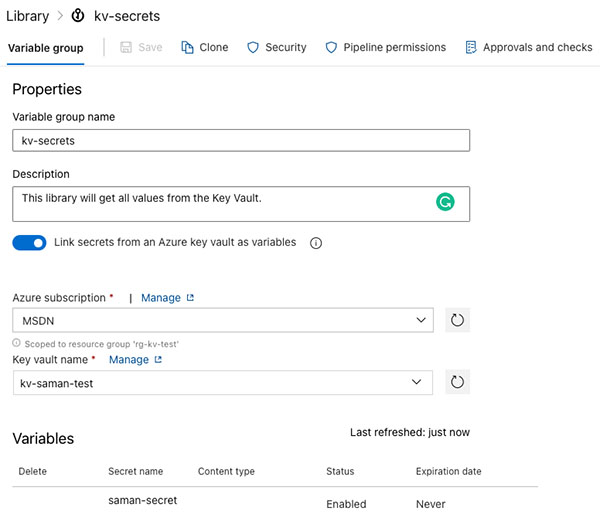
The first option is to link an Azure Key Vault to a Library in DevOps. During the creation of the Variable Group, you check “Link secrets from an Azure key vault as variables” switch on. The check box will make the authorisation dropdowns visible. The first dropdown will show all the AzDo service connections, or you can create a new one. The second dropdown will show available Key Vaults under the selected service connection. Make sure the Key Vault is created before you create the service connection. The authorisation to the Key Vault requires the Get and List permission from the Service Principal in the AAD created during the service connection creation.

Using Secrets in Azure DevOps

The pros of the feature are the manageability and the life-cycle of the secret in the KV. The cons of this feature are that you can not have any other secrets outside of the KV in this variable group.

Best practice of secrets in Azure DevOps using the Azure Key Vault Task

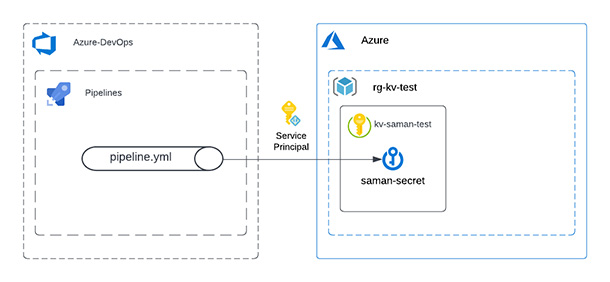
The second option is to use the Azure Key Vault Task. This option makes it possible to take advantage of a service connection which has access to a KV and fetches all secrets. Here is the code for the YAML task:

# Azure Key Vault
# Download Azure Key Vault secrets
- task: AzureKeyVault@2
  inputs:
    connectedServiceName: MSDN # Azure subscription
    keyVaultName: kv-saman-test # Name of existing key vault
    secretsFilter: '*' # Downloads all secrets for the key vault
    runAsPreJob: true # Runs before the job starts

Two options are critical in this task. The first is to filter secrets using the ‘*’ wildcard or the secret’s name. The second one is to run this task as a pre-job to fetch secrets before the run begins. In addition, using this task will make it possible to point to the Secret using the variable syntax, e.g. $(saman-secret).

By using this approach, you don’t have to manage any variable group, but at the same time, you have no visibility of the available secrets. The visibility of the list of secrets might be a plus if there are corporate policy restrictions.

Custom AzDo Task to Fetch and Expose the Secrets

Not always, the corporate policies or lack of authorisation to Azure resources make it possible to create service connections in the Azure DevOps environment. Fortunately, using the CLI of Azure enables access to Key Vaults. This approach is more extensive and might promote the best practice of secrets in Azure DevOps.

The custom code approach will use the CLI to log in to the Azure subscription and get the secret from the Key Vault. As the environment uses Bash script, the code will also expose the environment variable for further use. Here is the AzDo task code:

variables:
  samanSecret: ''

- bash: |
    # login to Azure using the CLI and service principal
    az login --service-principal -u $CLIENT_ID --tenant $TENANT_ID -p $CLIENT_SECRET
    
    # Get the secret
    SAMANSERCRET=$(az keyvault secret show --vault-name kv-saman-test --name saman-secret | jq -r '.value')

    #Set the value of the secret to a pipeline variable.
    #This requires the initiation of a pipeline variable before this task
    echo "##vso[task.setvariable variable=samanSecret;issecret=true;isOutput=false;]$SAMANSERCRET"

  displayName: Get saman-secret from kv#
  env:  # mapping of environment variables to add
    CLIENT_ID: 'the-id-of-a-service-principal'
    CLIENT_SECRET: 'the-secret-from-a-service-principal'
    TENANT_ID: 'azure-tenant-id'


Using this custom task, you can get and use the secret in the following Tasks or stages to update the value of a pipeline variable. The Task also makes it possible to fetch previous secret versions and update the secret using the same CLI if required.

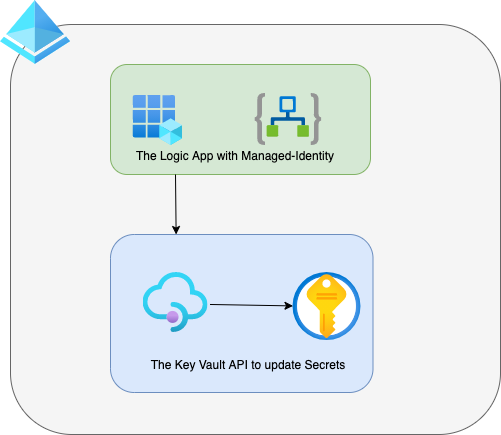
Azure Key Vault Secret updates using Logic App are challenging as there are no connectors, but using the API is a secure and managed way to do it.

Here is some background information on the use case. During my recent data and integration project, the team used Azure Logic apps to batch update and processed data to Salesforce. The Salesforce API requires a pre-defined schema for batch updating its objects. The ETL pipe using Azure Databricks makes the data ready in Azure Service Bus. Then, a Logic App trigger is used to perform the batch runs by subscribing to a topic.

The Problem of updates using the Logic App

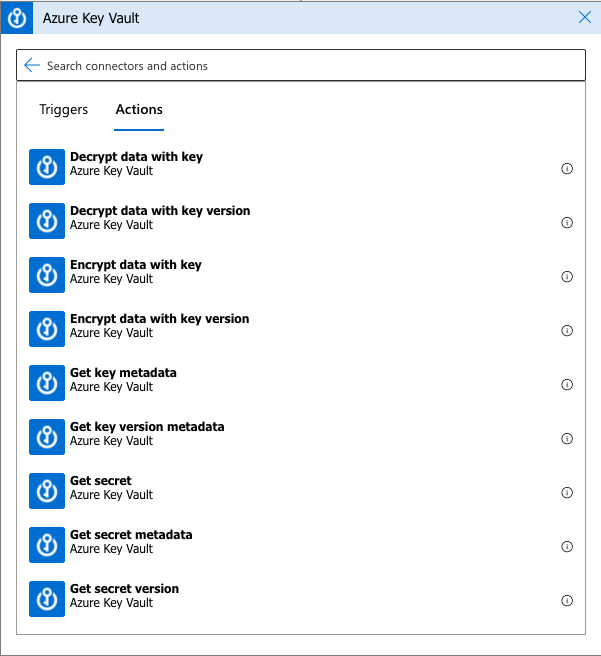
The Salesforce API requires an OAuth Bearer token to authenticate its services. The secure way to store the token in Azure would be in the Azure Key Vault. The logic app provides actions to use the Azure Key Vault. The currently supported actions are Decrypt, Encrypt, Get or List secrets. Therefore, we have no problem connecting to the Key Vault and getting the required token for the API calls with supported actions.

Logic Apps Actions for the Key Vault

The problem escalates when the token gets expired, and we have to renew the token.

The solution

Our architecture has a separate logic app dedicated to updating the Salesforce token. However, for some reason, there are no ready-made Actions for updating secrets in the Key Vault. So we had to use the API of the Key Vault to solve the problem.

The Technical Solution for Key Vault Secret Update

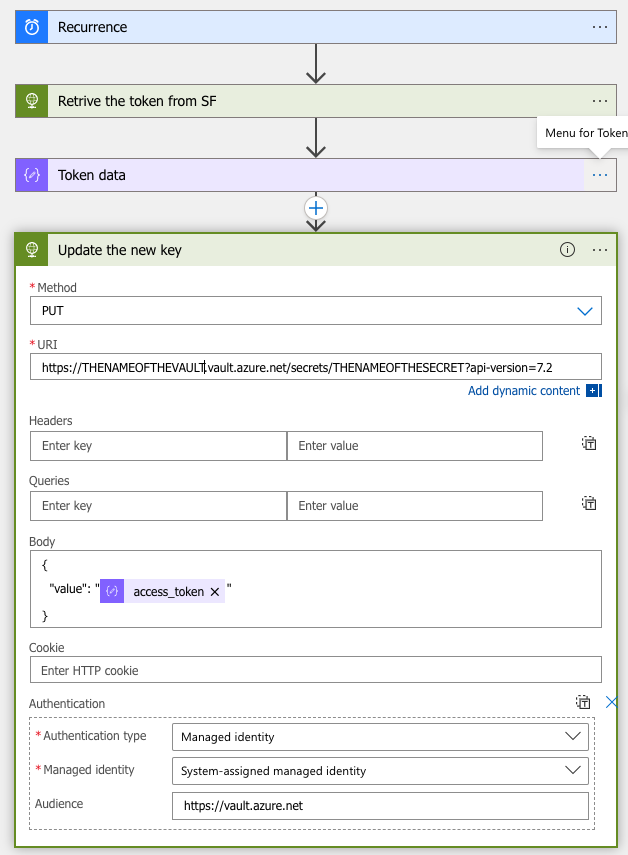
The token refresh workflow has four steps. First, the trigger is a recurrence and launches, for example, every hour, an HTTP API call that gets the token from the SalesForce API, a JSON parse action fetches the token. Finally, the HTTP API updates the token to the Key Vault.

Configuring the managed Identity

To authenticate against the Key Vault API, the most efficient way is to take advantage of the managed identity of the logic apps and give enough permissions to the identity to update secrets in the Key Vault.

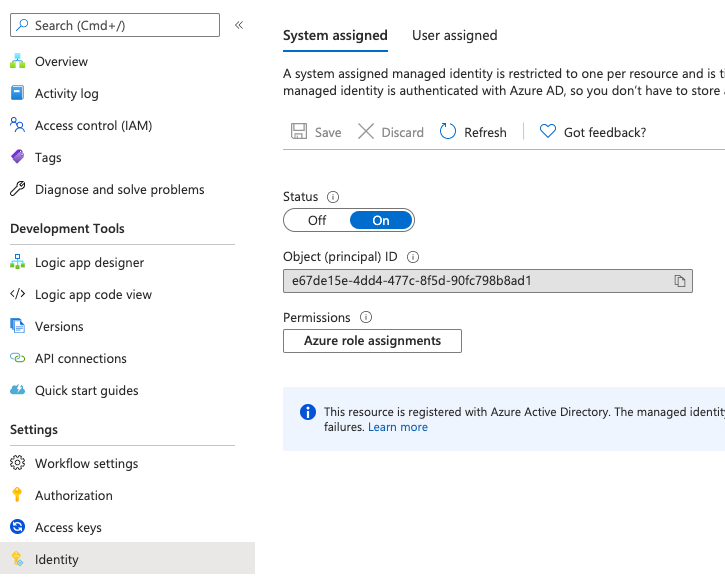
System Assigned managed identity in the Logic App

First, we have to create the system-assigned manager identity for the logic app from the Identity section. The next step is to give Get, List, and Set from the Access policies to the identity in the Key Vault using the object ID.

Azure Key Vault Secret updates using Logic App

Providing the secret, we want to update in the body section of the call. The Authentication type for the Action is Managed identity by using the System-Assigned identity. Some Azure services require the audience field to be also provided. In this case, the Audience value is https://vault.azure.net, as shown in the picture below.

Azure key vault secret update
The token refresh flow using API

This way, we don’t have to do an extra call to get a token for the Key Vault API, and the logic apps will do the work for us. Again, please refer to the Key Vault API documentation for more information.

Meltlake by Futurice got founded as a new sister company early this month. I’ll review the founding story in this blog post. Many of friends and colleagues have asked me about the company and the relationship I have with the founded start-up. In this blog post, I’ll explain how everything started and what was my role in the new start-up.

Joining The Futurice UK

I joined Futurice Group London branch in September 2018. That is after having an eight months break from my own Microsoft consultancy Digital Illustrated. Before joining Futurice, I had two paths in mind the first one was to become a freelancer. The second one was to join a high-tech company which had expanded its business to other countries from Finland. As I decided to move to London, the choice was clear. I already had a friend working for Futurice, and I wanted to learn the expansion business. For that reason, a friend of mine introduced me to the Tech lead in the London office.

The recruitment process in Futurice has many stages. The process indicates that the joining person has enough qualifications for the chosen role. After the preliminary stages, Timo Hyväoja a vice president from the Helsinki office, had joined the London office. He was my contact in the negotiations stage. He shortly after became the Managing Director of the UK business.

Futurice and Microsoft relationship

Futurice is a technology agnostic company, and they want to keep it that way. My conflicts with the technology-agnostic ideology started already during interviews. During my interviews, Timo asked me if I want to change my technology stack. My answer was neutral, and I said I’m open to opportunities. I already knew by then it will hard for a guy with my experience and skills in the Microsoft ecosystem.

As I joined the company, I checked the Microsoft partnership status, which was dead at that moment. I started to gather references and hunt down people with Microsoft certifications. I got the Application Development partnership resurrected after a few weeks of joining the company. Later on, I went for the could partnership programs.

Overall people working for Futurice are neural about Microsoft or more fan of Open Source technologies. I also have to mention that in the London office, I was harassed because of my technology preferences. I’m not a guy who gives up or gives in!

The early Idea of Microsoft specific sister company

I think if people are following a particular path, it doesn’t mean that they are on the right path. The first time having a Microsoft specific sister company in Futurice group came to my mind in early 2019. I expressed my ideas to Timo Hyväoja, the ex-managing director of London and Mikko Viikari. Mikko is a founder of Futurice and responsible for the startups and sister company businesses. We left the idea to rest because of the challenges and projects we had in the London office.

I was extremely interested in Microsoft technologies as part of the Futurice business. We booked our tickets with Osmo Haapaniemi the MD of the Tampere office in Finland to Ignite 2019 in November to identify new business opportunities for the group. I have particular respect for Osmo. He is a good friend and an excellent leader!

Meltlake by Futurice, I was re-hired as an advisor by Futurice!

The trip to Ignite was an eye-opener for Osmo and the Futurice group. At the same time, the business situation changed so rapidly in the London office, and I had to leave. For that reason, I booked my tickets to Finland to meet the management team of the Futurice Group.

Not only Futurice didn’t want me to leave, but they invited me to join the Tampere office as an advisor. In November 2019, I was unemployed for 12 hours, but soon after I started as a team lead. The project I’m still leading is a world-class IoT project. Futurice also wanted to review the possibilities of having a Microsoft consultancy business. For that reason, I got the second mission as an advisor to write a business plan. The idea was to pivot a new Microsoft consultancy as an independent company and me as a co-founder.

Meltlake by Futurice, the new Microsoft consultancy

During my visit to Finland in November 2019, I met Timo Hyväoja (the ex-managing director of London) in Helsinki. I explained my status and asked his interests to join the new start-up. He was more than happy to see the opportunity and joined me also as a founder. We also had the support from the Tampere office with Microsoft technology-based projects and sales leads. For that reason, I also wanted to have Osmo Haapaniemi as a founder.

Meltlake by Futurice got founded as a new sister company early this month, but the preparation started much earlier. From December to January, I was preparing the initial business plans, value proposition and marketing strategy for the new startup. From the beginning of 2020, we co-created and emphasized the rest of the materials with other partner candidates. These materials were cost calculations, risk analysis, product reviews and sales plans for the Futurice board. Ideas were presented to the board of directors at the beginning of February. The board has big names such as Risto Siilasmaa (the founder of F-secure). Our proposal was accepted, and we started the contract negotiations. Our plans were also praised, and I’m super proud of my self with the job I did!

The contract negotiation phase took us time and many iterations, but eventually, we agreed on partner terms. During this period, we were doing long days with Timo. I also have to admit that it’s not easy to run projects and found a new company at the same time. Long working hours will drain your energy, take away your creativity and eventually will cause burnout.

In the new startup, each founder responsibilities based on our strengths. One of my responsibilities was working on the external layout of the new company. It’s always hard to find a company name, and especially with the free .com domain. After having a few name candidates my suggestion was the best one, and in mid-February, I registered meltlake.com under my own Godaddy account. The domain was later transferred to Meltlake Oy after the registration of the company.

Rejecting the Partnership Offer

I got married on the 24th of December 2019, and because of the new company, we cancelled our honeymoon. I flew to Finland just after the new year holidays and spent the time to manage the required tasks. During my visit, I felt that the distance would harm my relationship and personal life. Being away from home for more extended periods is a poison to the relationship and distance relationship will never work.

After returning home from Finland, I had a few days to relax. The relaxation made it possible to take time more and distance to think about the new startup. I also shared my concerns with my wife. I felt that the stress level I’m creating for my self was not healthy. The time I’ll spend running the company will be away from my family and my free time. It will take at least seven to ten years to build a proper company. The new startup also required our family to move back to Finland. My Wife is at the moment doing her PhD for the Brunel University London. It would be impossible for us to move to Finland at this stage.

On the other hand, I have already created a successful Microsoft consultancy in Finland. Every leader who has been in the IT consulting business are aware of the sales and requirements dilemma. The low visibility you have for the income pipeline is another problem. Not talking about scaling challenges there are for the consulting business in a market such as Finland.

Having all these pros and cons in mind, I had to make one of the hardest decisions in my life. On the day we had to sign the partnership contracts, I had to have the most difficult conversations. In the call with other founders, I explained my situation and stood down from my position. To make such a decision, a human should reach a certain maturity. The courage to make a curtain call is another strength which all of the people don’t have. Fortunately, I had both of them!

Was it a good decision and what now?

Meltlake as an experience was priceless and I learned so much from it. At the moment Futurice has seven Microsoft gold partnerships and also majority shares in a Microsoft consultancy. I guess things I fought for has returned good results. Timo who is also a great friend of mine took our plans and is executing them right now. I’m super happy for him and praise his courage to execute the plan!

Last week he called me and wanted me to join his advisory board. I accepted that willingly!

At the moment I’m working as a full-time freelancer for the Futurice group, and also advising Meltlake. I still have the hunger for building something new, and I’m currently working on it in Spain. The new plan might be a blog post at some point!

Databricks on Azure is essential in data, AI and IoT solutions, but the env. automation can be challenging. Azure DevOps is a great tool for automation. Using Pipelines and product CLI integrations can minimise or even remove these challenges. My team is currently working on a cutting edge IoT platform where data flows from edge devices to Azure. We are dealing with data which is sensitive, and under GDPR so no one should have direct access to the data platform in the production environments.

In the project, data is generated by sensors and sent to the cloud by the edge devices. Ingestion, processing and analysis of data are too complicated for the traditional relational databases; for this reason, there are other tools to refine the data. We use DataBricks in our Lambda Architecture to batch process the data at rest and predictive analytics and machine learning. This blog post is about the DataBricks cluster and environment management, and I’ll not go deeper to the architecture or IoT solution.

The Automation Problems

As any reliable project, we have three environments which are development, user acceptance testing (UAT) and production. In my two previous posts, Azure Infrastructure using Terraform and Pipelines and Implement Azure Infrastructure using Terraform and Pipelines, I had an in-depth review and explanation of why and how Terraform solves environment generation and management problems. Let’s have a study the code Terraform provides for Databricks.

resource "azurerm_resource_group" "example" {
  name     = "example-resources"
  location = "West US"
}

resource "azurerm_databricks_workspace" "example" {
  name                = "databricks-test"
  resource_group_name = azurerm_resource_group.example.name
  location            = azurerm_resource_group.example.location
  sku                 = "standard"

  tags = {
    Environment = "Production"
  }
}

Wait a minute, but that is only the empty environment!
What about the Clusters, Pools, Libraries, Secrets and WorkSpaces?

The Solution, DataBricks Automation with Azure DevOps

Fortunately, DataBricks has a CLI which we can be imported for DataBricks environment automation using Azure DevOps Pipelines. The Pipelines enable us to run PowerShell or Bash scripts as a job step. By using the CLI interfaces in our Bash Script, we can create, manage and maintain our Data bricks environments. This approach will remove the need to do any manual work on the Production DataBricks Work Space. Let’s review the bash script.

#!/bin/bash
set -e

CLUSTER_JSON_FILE="./cluster.json"
INSTANCE_POOL_JSON_FILE="./instance-pool.json"
WAIT_TIME=10

wait_for_cluster_running_state () {
  while true; do
    CLUSTER_STATUS=$(databricks clusters get --cluster-id $CLUSTER_ID | jq -r '.state')
    if [[ $CLUSTER_STATUS == "RUNNING" ]]; then
        echo "Operation ready."
        break
    fi
    echo "Cluster is still in pending state, waiting $WAIT_TIME sec.."
    sleep $WAIT_TIME
  done
}

wait_for_pool_running_state () {
  while true; do
    POOL_STATUS=$(databricks instance-pools get --instance-pool-id $POOL_INSTANCE_ID | jq -r '.state')
    if [[ $POOL_STATUS == "ACTIVE" ]]; then
        echo "Operation ready."
        break
    fi
    echo "Pool instance is still in not ready yet, waiting $WAIT_TIME sec.."
    sleep $WAIT_TIME
  done
}

arr=( $(databricks clusters list --output JSON | jq -r '.clusters[].cluster_name'))
echo "Current clusters:"
echo "${arr[@]}"

CLUSTER_NAME=$(cat $CLUSTER_JSON_FILE | jq -r  '.cluster_name')

# Cluster already exists
if [[ " ${arr[@]} " =~ $CLUSTER_NAME ]]; then
    echo 'The cluster is already created, skipping the cluster operation.'
    exit 0
fi

# Cluster does not exist
if [[-z "$arr" || ! " ${arr[@]} " =~ $CLUSTER_NAME ]]; then
  printf "Setting up the databricks environment. Cluster name: %s\n" $CLUSTER_NAME

  #Fetching pool-instances
  POOL_INSTANCES=( $(databricks instance-pools list --output JSON | jq -r 'select(.instance_pools != null) | .instance_pools[].instance_pool_name'))
  POOL_NAME=$(cat $INSTANCE_POOL_JSON_FILE | jq -r  '.instance_pool_name')
  if [[ -z "$POOL_INSTANCES" || ! " ${POOL_INSTANCES[@]} " =~ $POOL_NAME ]]; then
    # Creating the pool-instance
    printf 'Creating new Instance-Pool: %s\n' $POOL_NAME
    POOL_INSTANCE_ID=$(databricks instance-pools create --json-file $INSTANCE_POOL_JSON_FILE | jq -r '.instance_pool_id')
    wait_for_pool_running_state
  fi

  if [[ " ${POOL_INSTANCES[@]} " =~ $POOL_NAME ]]; then
    POOL_INSTANCE_ID=$(databricks instance-pools list --output JSON | jq -r --arg I "$POOL_NAME" '.instance_pools[] | select(.instance_pool_name == $I) | .instance_pool_id')
    printf 'The Pool already exists with id: %s\n' $POOL_INSTANCE_ID
  fi

  # Transforming the cluster JSON
  NEW_CLUSTER_CONFIG=$(cat $CLUSTER_JSON_FILE | jq -r --arg var $POOL_INSTANCE_ID '.instance_pool_id = $var')

  # Creating databricks cluster with the cluster.json values
  printf 'Creating cluster: %s\n' $CLUSTER_NAME

  CLUSTER_ID=$(databricks clusters create --json "$NEW_CLUSTER_CONFIG" | jq -r '.cluster_id')
  wait_for_cluster_running_state

  # Adding cosmosdb Library to the cluster
  printf 'Adding the cosmosdb library to the cluster %s\n' $CLUSTER_ID
  databricks libraries install \
    --cluster-id $CLUSTER_ID \
    --maven-coordinates "com.microsoft.azure:azure-cosmosdb-spark_2.4.0_2.11:1.3.5"
  wait_for_cluster_running_state
  echo 'CosmosDB-Spark -library added successfully.'
  
  echo "Databricks setup created successfully."
fi

First, we will create a Pool for the cluster by waiting for the completion status and the Id. Then we will create a cluster by using the created Pool and wait for the completion. As our cluster gets ready then we will be able to use the cluster id to add Libraries and Workspaces using the following script. there are two support JSON files which include the environment properties.

 cluster.json 
{
    "cluster_name": "main-cluster",
    "spark_version": "6.4.x-scala2.11",
    "autoscale": {
        "min_workers": 1,
        "max_workers": 4
    },
    "instance_pool_id": "FROM_EXTERNAL_SOURCE"
}

pool.json
{
    "instance_pool_name": "main-pool",
    "node_type_id": "Standard_D3_v2",
    "min_idle_instances": 2,
    "idle_instances": 2,
    "idle_instance_auto_termination": 60
}

In our Azure DevOps Pipelines definition first we have to install Python runtime and then DataBricks CLI. By having required environment runtimes then we can run the bash script. Here is the code snippet for the Pipelines step:

- bash: |
          python -m pip install --upgrade pip setuptools wheel
          python -m pip install databricks-cli

          databricks --version
        displayName: Install Databricks CLI

      - bash: |
          cat >~/.databrickscfg <<EOL
          [DEFAULT]
          host = https://westeurope.azuredatabricks.net
          token = $(DATABRICKS_TOKEN)
          EOL
        displayName: Configure Databricks CLI

      - task: ShellScript@2
        inputs:
          workingDirectory: $(Build.SourcesDirectory)/assets/databricks
          scriptPath: $(Build.SourcesDirectory)/assets/databricks/setup.sh
          args: ${{ parameters.project }}-${{ parameters.workspace }}
        displayName: Setup Databricks

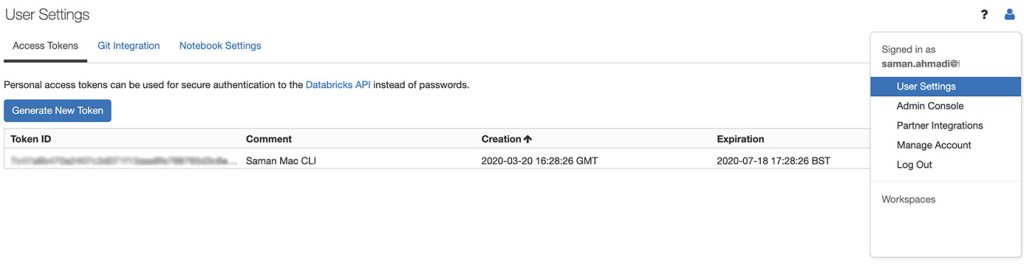
To be able to run the script against the Databricks environment you need a token. The token can be generated under the workspace and user settings.

DataBricks Automation with Azure DevOps Pipelines. DataBricks Token.

The environment variables and settings are in JSON files, and the complete solution for DataBricks Automation with Azure DevOps Pipelines and support tool files are available from my GitHub repository.